

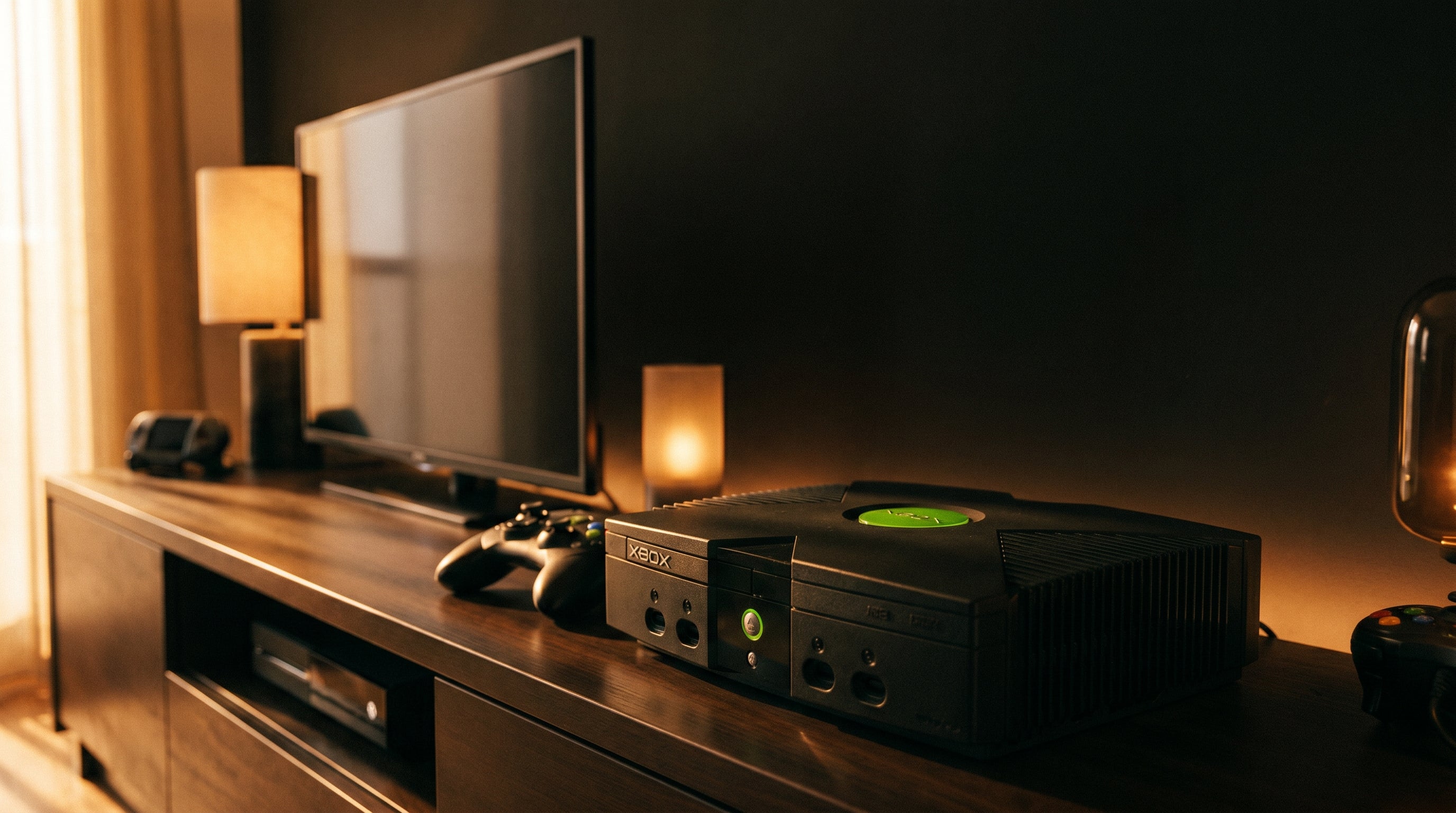
The Original Xbox has one of the most underrated libraries in retro gaming. It also happens to be one of the best-supported retro consoles for modern display setups - because unlike the PS2 and Wii, a meaningful portion of its library outputs natively at 480p, 720p, and occasionally higher. Getting it onto a modern TV properly is worth doing right.
This guide covers everything from cables and converter through settings, troubleshooting, and what the hardware is actually capable of.
What You Need
Component cables. The Xbox shipped with a composite AV cable (yellow/red/white). Component cables - red, green, blue video plus red/white audio - are substantially better. Official Microsoft Xbox component cables are worth finding secondhand. Third-party Xbox component cables are available and generally reliable.
A component-to-HDMI converter. The ElectronXout was built specifically for the Original Xbox. It connects via the Xbox's proprietary AV port, converts the component signal to HDMI, passes Dolby Digital 5.1 surround audio over HDMI, and adds less than 1 millisecond of lag. Compatible with all Xbox hardware revisions (1.0 through 1.6). Draws power directly from the Xbox's AV connector - no external USB power needed.
An HDMI cable. Any standard HDMI cable works.
Xbox Dashboard Settings
Video output: Dashboard > Settings > Video. The Original Xbox can output 480i, 480p, 720p, or 1080i depending on what the game supports. For modern TV setups, 480p is the baseline starting point. Avoid 1080i on modern displays - the "i" is interlaced, and modern TVs handle 1080i poorly. If a game offers both 720p and 1080i, choose 720p every time.
Dolby Digital audio: Dashboard > Settings > Audio > Dolby Digital. Enable this for 5.1 surround sound output over HDMI. Without it, you get stereo only. The ElectronXout passes the digital audio signal through HDMI to your TV or receiver.
TV Settings
Enable Game Mode. Reduces processing lag and removes most of the image processing effects that work against retro content. The most important single setting.
HDMI color range: Full or Auto. The ElectronXout outputs full-range color. If the TV is set to Limited, the image looks flat and dark.
Aspect ratio: 4:3 for most games. Approximately 400 Xbox games support true 16:9 widescreen - those fill the screen correctly. The majority of the library is 4:3. Don't stretch 4:3 content to fill the screen.
Motion smoothing: off. Turn off TruMotion, MotionFlow, Motion Plus, or whatever your TV calls it. These add artifacts to retro content and make the image look wrong.
What the Xbox Is Actually Capable of on a Modern TV
The Original Xbox is unusually capable for its era on resolution. Almost the entire library supports 480p. Roughly 50 games support native 720p in true widescreen - these look genuinely impressive on a modern display. A small number support 1080i, which as noted above should be avoided on modern TVs in favor of 720p where both are available.
This makes the Original Xbox a different proposition than the PS2 or Wii, where the ceiling is effectively 480p for everything. An Xbox game running at native 720p through a quality converter on a modern TV is a real visual step up - one of the things that makes the Xbox library hold up so well today.
Troubleshooting
-
No picture
Check the video output settings in the Xbox Dashboard. Try a different HDMI port on the TV. Try a different HDMI cable.
-
Black screen on some TVs
The TV is rejecting 480i over HDMI. Switch the Dashboard video setting to 480p.
-
No audio
Confirm Dolby Digital is enabled in the Dashboard audio settings. Confirm your TV or receiver is set to accept the format being sent.
-
Wavy lines, jailbars, or color banding
Almost certainly the Xbox's capacitors, not the converter. The Original Xbox capacitor guide covers diagnosis and repair in detail. This is the most common hardware issue on aging Xbox consoles and is revealed by component in ways composite masks.
-
Composite works but component looks bad
Classic capacitor degradation. See the capacitor guide above.
Hardware Revision Notes
The Xbox shipped in revisions 1.0 through 1.6. Revision 1.0 had a quirk in its digital audio output that caused problems with earlier-generation adapters. The ElectronXout V3 handles all revisions correctly including 1.0. Revision 1.6 uses different internal components and tends to be more stable in terms of capacitor-related video issues.
For a deeper look at the signal quality arguments and what makes component video meaningfully better than composite for the Xbox, the composite vs. component vs. RGB explainer covers the fundamentals. The Original Xbox HDMI adapter guide covers the buyer's guide side of the same topic.
Built specifically for the Xbox
The ElectronXout was designed for the Original Xbox. Component-to-HDMI conversion, Dolby Digital 5.1 passthrough, less than 1ms added lag, compatible with all hardware revisions including 1.0. Draws power from the console's AV connector - nothing extra needed.
Share:
Input Lag in Retro Gaming: What It Is, Where It Comes From, and How to Minimize It
Best PS2 HDMI Adapters in 2026: An Engineer's Honest Comparison