


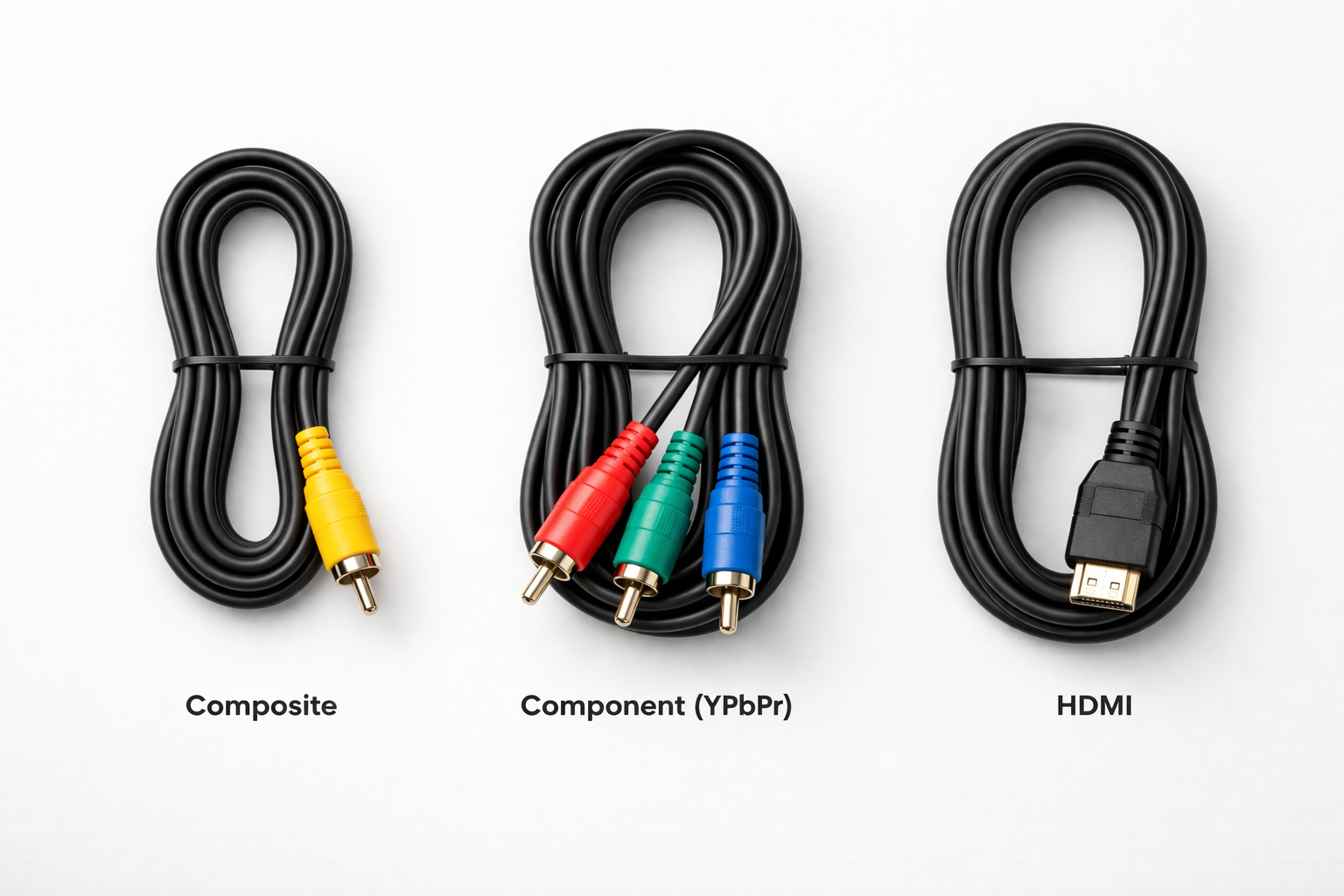
Every retro gaming adapter listing throws around terms like "component video," "YPbPr," and "RGB" as if you already know what they mean. Most don't explain them. And if you pick the wrong adapter because the terminology confused you, you'll end up with a picture that looks worse than it should - or one that doesn't work at all.
This post explains what each signal type actually is, why they produce different image quality, and which one your console is capable of. If you've ever stared at a product listing wondering why it says "component (YPbPr)" instead of just "component," this is the post for you.
The Short Version
If you're in a hurry, here's the hierarchy from worst to best, with a more detailed explanation of each below.
Composite (CVBS) - one yellow cable, all video crammed onto a single wire. Soft, blurry, color bleeding. What most people used in the 1990s because it was the only option.
S-Video - two wires. Cleaner than composite, eliminates the worst artifacts. Rarely the best option when component is available.
Component (YPbPr) - three cables (red, green, blue), brightness and color on separate channels, supports progressive scan. The practical ceiling for most North American retro gaming setups.
RGB - three color channels, no compression, the purest analog signal. Primarily European (SCART connector). Excellent quality, but not practically accessible for most US setups without additional hardware.
HDMI - fully digital, what modern converters output to your TV.
One important caveat before going deeper: this hierarchy assumes equal quality downstream. A bad component-to-HDMI converter can produce a worse picture than a well-implemented composite setup. The signal type is only half the equation - which is something most listings won't tell you.
Why Video Signals Are Not All Equal
Every one of these signals is trying to accomplish the same thing: get the red, green, and blue pixel data from inside your console to your display. The difference between them is how much that information gets mixed together during transmission, and how much work the TV - or converter - has to do to separate it back out.
Here's the core principle: every time video information gets combined and then separated again, quality is lost. Some of that loss is subtle. Some of it is not.
Composite video mixes everything together. RGB keeps everything separate. Component sits in between - it compresses RGB into a slightly more efficient form without fully combining it. Understanding that spectrum is all you need to make sense of the rest.
Composite Video (CVBS) - The Yellow Cable
Composite video encodes all of a picture's information - brightness, color, and sync - onto a single wire. The TV on the receiving end has to decode that signal and separate the brightness information from the color information. It does this imperfectly, because the two were mixed together in the first place.
The result is what composite is known for: soft edges, color bleeding, and "dot crawl" - that shimmering, rainbow-like artifact you see crawling along high-contrast edges. These aren't bugs in your TV. They're the inherent consequence of mixing the signal and then trying to un-mix it.
On a small CRT that was designed around composite, the picture can look fine. Composite was the broadcast television standard from the 1950s onward, and every TV made during the retro gaming era was optimized to display it. On a large modern display, that same signal gets scaled up and every flaw gets magnified.
Consoles that max out at composite without modification: the NES, most Atari systems, and the N64 in NTSC regions (which has S-Video but no RGB without a mod).
One honest note worth making: composite on a CRT has a specific aesthetic character that some people prefer for certain games. Dithering effects that developers deliberately built into games like Sonic the Hedgehog rely on composite's color blending to look the way they were intended. That's a legitimate reason to keep composite around for specific setups - it's just not what you want when you're trying to get the cleanest possible image on a modern TV.
Component Video (YPbPr) - The Three-Cable Standard
Component video splits the signal into three separate channels: Y (luma, which carries brightness and sync), Pb (the difference between blue and luma), and Pr (the difference between red and luma). Because brightness and color are on separate wires, the display doesn't have to guess where one ends and the other begins.
The result is sharper edges, accurate colors, and no dot crawl. Component also supports progressive scan - 480p, 720p, and 1080i - where composite is locked to interlaced 480i. That progressive scan support is a meaningful quality improvement on its own, independent of the signal separation.
One thing that trips a lot of people up: component video cables are colored red, green, and blue - but this is not RGB. It's a mathematically transformed version of RGB that's more efficient to transmit over analog cables. The green cable carries luma (Y), not the green color channel. Despite the cable colors, the signal is fundamentally different from RGB. Retailers and product listings often blur this distinction, which causes real confusion.
The consoles that support component video natively are exactly the ones Electron Shepherd's products are built around:
The Original Xbox outputs component natively - this is what the ElectronXout converts to HDMI. The PlayStation 2 and PS3 output component when enabled in the system settings - what the ElectronPulse converts. The Nintendo Wii outputs component natively - what the ElectronWarp converts. The GameCube also supports component, but requires the official Nintendo component cable.
For these consoles, component is the best signal you can get without opening the hardware. A quality converter that handles it correctly is what stands between your console's best output and what actually appears on your TV.
RGB - The Purest Analog Signal
RGB keeps red, green, and blue as completely separate, uncompressed channels. There's no mathematical transformation between what the console generates and what goes down the wire.
Here's something worth knowing: virtually every classic game console generates RGB internally. It's the native output of the video chips inside a PS1, SNES, Genesis, Saturn, or Dreamcast. Composite and S-Video signals are derived from RGB downstream, which means information is lost in the conversion before it even leaves the console. RGB skips that derivation entirely.
In practice, the visible quality difference between well-implemented component and RGB is small for most gaming use cases. The bigger, more obvious upgrade is composite to component. But for 2D games, pixel art, and anything with fine detail, RGB has a measurable advantage.
The problem for North American retro gamers is access. RGB was delivered in Europe through SCART - a 21-pin connector that was standard on European TVs throughout the console era. SCART never caught on in North America. To use RGB on a modern display here, you typically need an upscaler like a RetroTINK or an OSSC that can accept RGB and convert it to HDMI. For most North American setups, component is the practical ceiling.
Consoles that support RGB natively via SCART (no modification required): PlayStation 1, PlayStation 2, SNES, Sega Genesis/Mega Drive, Sega Saturn, Dreamcast, and GameCube (PAL versions).
S-Video - The Forgotten Middle Ground
S-Video splits the signal into two channels: Y (luma) and C (chroma). It doesn't separate color into individual components the way YPbPr does, but it eliminates the worst artifact of composite - dot crawl - by keeping brightness and color on separate wires.
The result is noticeably cleaner than composite, with sharper edges and no color bleeding. But S-Video is still below component in the hierarchy, and it doesn't support progressive scan.
S-Video is most relevant for the N64 in NTSC regions, which has native S-Video output but no component without a hardware modification. If component isn't available for your console, S-Video is a meaningful improvement over composite and worth using.
Which Signal Should You Use for Your Console?
Here's a practical console-by-console reference. "Best stock signal" means the best output available without opening the hardware or performing a modification.
One important caveat: console video output capability often varies by region and hardware revision. A PAL GameCube supports RGB via SCART; an NTSC GameCube does not. Early SNES models output RGB cleanly; the later "SNES Mini" (NTSC) revision removed the RGB circuit entirely. Some Sega Genesis/Mega Drive revisions have better RGB output than others. The N64 supports S-Video on NTSC units but not PAL. If your console doesn't behave the way this table suggests, the specific model or region variant you own may be the reason. When in doubt, the RetroRGB console database is the most thorough reference for model-by-model output specifics.
| Console | Best Stock Signal | Notes |
|---|---|---|
| Original Xbox | Component | ElectronXout converts this to HDMI |
| PlayStation 2 | Component | Must enable YPbPr in system settings - RGB mode will not work with component converters. ElectronPulse converts this to HDMI |
| PlayStation 3 | HDMI | HDMI is built in - no converter needed |
| Nintendo Wii | Component | ElectronWarp converts this to HDMI |
| GameCube | Component | Requires official Nintendo component cable |
| SNES | RGB | Via SCART; component not supported natively. S-Video on some models. |
| N64 | S-Video | NTSC only; RGB via mod. Composite otherwise. |
| NES | Composite | RGB possible via hardware mod only |
| PlayStation 1 | RGB | Via SCART; composite is common but noticeably inferior |
| Sega Genesis | RGB | One of the best native RGB outputs of any console |
| Sega Saturn | RGB | Via SCART; does not support component natively |
| Dreamcast | RGB / VGA | VGA via a VGA box is excellent quality for supported games |
Why the Converter Matters as Much as the Signal
Having a component signal is necessary but not sufficient. A poorly designed component-to-HDMI converter can introduce its own problems - chroma noise, banding, color fringing, and added input lag - that make the output look worse than a clean composite setup on a good CRT would.
The two factors that separate converters are the IC chip doing the analog-to-digital conversion and the PCB layout that routes the signal to it. Cheap converters use older, lower-grade ICs that process the signal imperfectly. A well-designed converter uses a higher-quality chip and routes the analog signal path in a way that minimizes interference before the conversion happens.
This is also why the signal type and the converter have to be considered together. A good converter handling a component signal is the combination that actually produces the picture quality these consoles are capable of. Either one without the other leaves something on the table.
For more detail on how this plays out for a specific console, see the Original Xbox HDMI guide - the same principles apply across the PS2 and Wii as well.
If your console outputs component, here's what to use
For the Original Xbox, the PlayStation 2, and the Nintendo Wii, component video is the best signal available without hardware modification. Each of these consoles has a dedicated converter built around its specific connector and output characteristics.
The ElectronXout (Original Xbox), ElectronPulse (PS2/PS3), and ElectronWarp (Wii) each use a custom PCB with a higher-generation IC, tested on multiple hardware revisions, with less than 1ms of added latency. No upscaling, no forced resolution changes - just a clean component-to-HDMI conversion.
Share:
Original Xbox to HDMI: The Complete Buyer's Guide
Original Xbox Capacitor Problem: Symptoms & Fixes