


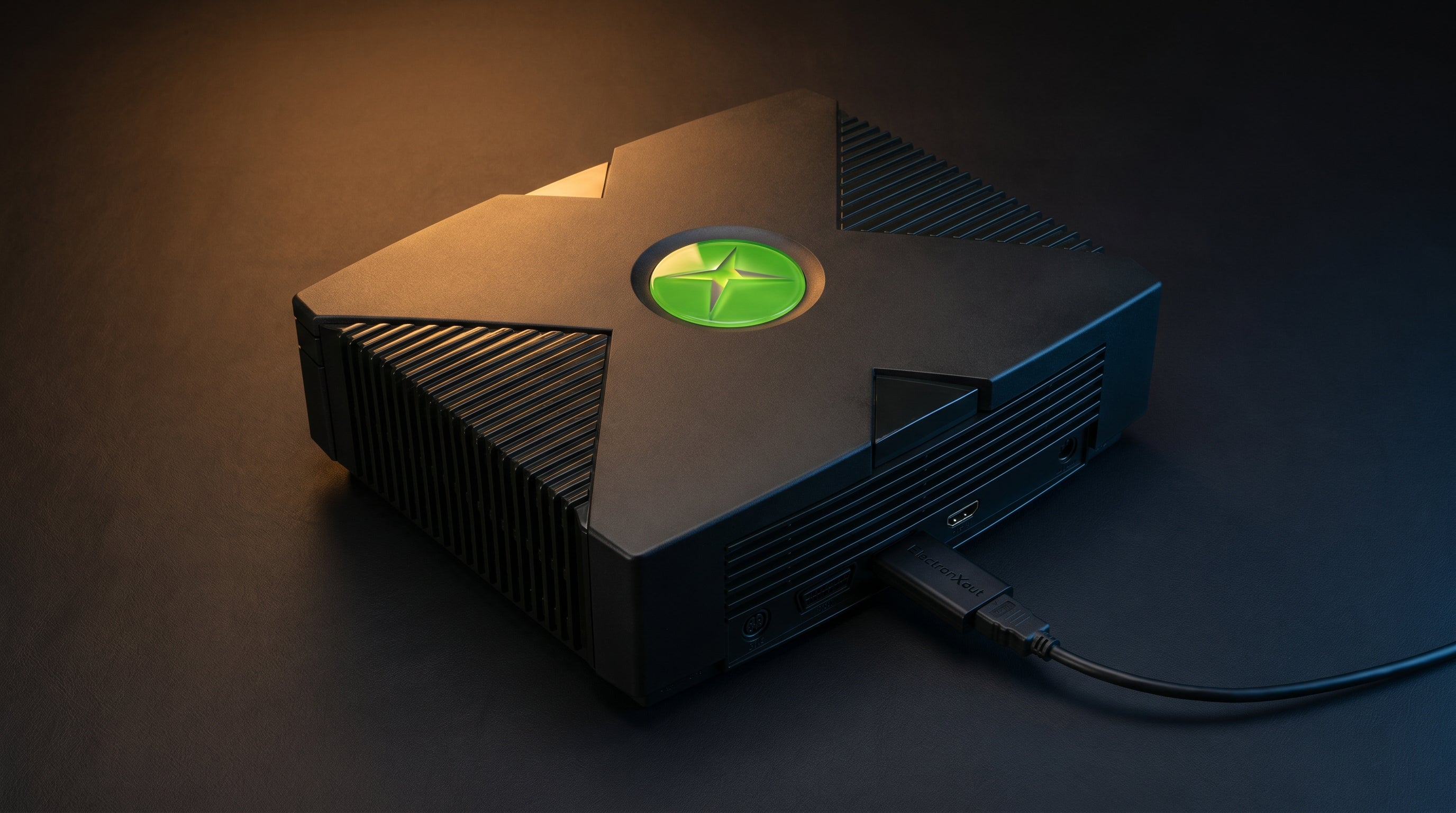
Most Original Xbox setups are running well below the console's actual video capability. The hardware supports 480p, 720p, and in some cases 1080i — but getting there requires the right cable, the right dashboard settings, and a TV configured to handle the signal correctly. Most people have at least one of these wrong.
This guide works through every decision point that affects picture quality, in the order it matters. By the end, your Xbox should be outputting the best signal it is physically capable of producing.
Step One: Get the Signal Path Right
Picture quality on any console starts at the output connector. Everything downstream — the cable, the adapter, the TV — can only preserve or degrade what the console sends. The Xbox AV connector carries both composite and component signals simultaneously; which one your setup uses determines your quality ceiling.
Composite (CVBS). All color information blended into a single signal. Caps at 480i. This is what the standard AV cable shipped with the Xbox delivers. Composite-based HDMI adapters operate the same way — they tap the composite pins and convert that signal.
Component (YPbPr). Three separate channels for luminance and color difference. Enables 480p, 720p, and 1080i. Available through the same AV connector via the component pins. Requires a component-capable cable or adapter.
If you are using the original composite AV cable or a generic composite HDMI adapter, you are at the composite ceiling regardless of any other setting. The first upgrade is the signal path. The ElectronXout taps the component pins on the Xbox AV connector and delivers the full resolution capability of the console over HDMI.
Step Two: Configure the Xbox Dashboard
The Xbox dashboard controls which resolutions are advertised to games. Even with a component-capable adapter installed, the console will default to 480i if HD resolutions are not enabled.
-
1
From the Xbox dashboard, go to Settings.
-
2
Select Video. You will see checkboxes for 480p, 720p, and 1080i.
-
3
Enable 480p and 720p. 1080i is optional — few games use it and some TVs have trouble accepting it. Enable it if you want to test it, but 720p is the more practical maximum for most setups.
-
4
Confirm the settings and let the Xbox apply them. The screen will go dark briefly while the console switches output modes.
If the picture goes black and does not return after changing HD settings, the TV may not accept that resolution. Wait ten seconds for the Xbox to revert automatically, then try enabling only 480p to start.
With these settings applied, the Xbox will run each game at the highest resolution that game supports. Games that only support 480i will still output 480i — the dashboard setting does not override what a game is programmed to output.
Which Games Support HD Resolutions
The Xbox library has over 900 titles, and not all of them support 480p or higher. The majority of the retail library does support 480p — this was a checkbox requirement for many Xbox Game Studios titles. 720p support is less common but covers a meaningful portion of the best-known games.
Notable Xbox titles with 720p support include Halo 2, Halo: Combat Evolved, Project Gotham Racing 2, Forza Motorsport, Burnout 3: Takedown, and Ninja Gaiden. These games were designed and tested at 720p and look substantially better on a modern TV when that resolution is delivered correctly.
Games that support only 480i — typically sports titles and ports of PlayStation 2 games — will output 480i regardless of dashboard settings. The component signal path still benefits these games compared to composite (cleaner color, no chroma bleeding), but the resolution ceiling is fixed by the game itself.
Configuring the TV
A few TV settings affect how the Xbox signal is handled. These are one-time adjustments that apply per HDMI port.
-
Enable Game Mode
Reduces input lag by bypassing post-processing. Most 4K TVs achieve 10–20ms in Game Mode. Without it, some panels add 50–100ms, which is noticeable in action-heavy games. Find it in Picture settings.
-
Set HDMI Black Level to Low (Samsung) or disable Deep Color (LG)
Prevents color clamping from a limited-range signal. Samsung: Picture → Expert Settings → HDMI Black Level → Low. LG: turn off HDMI ULTRA HD Deep Color for the connected port.
-
Disable sharpening and noise reduction
These filters are designed for broadcast content and degrade clean game signals. Set both to zero. On most TVs they are in the Picture or Advanced settings menu.
One More Thing: Check the Capacitors
The Original Xbox has a known capacitor degradation problem that affects aging consoles. Failing capacitors can cause video noise, color shifts, instability, and clock loss — symptoms that look like a cable or adapter problem but are actually hardware degradation inside the console.
If you have done everything in this guide and the picture is still unstable, noisy, or inconsistent, the capacitors are worth inspecting. A console with degraded capacitors will not produce clean video regardless of which adapter or cable you use. See our Original Xbox capacitor guide for symptoms and next steps.
What to Expect
With a component signal path through the ElectronXout, HD resolutions enabled in the dashboard, and Game Mode on the TV, the Original Xbox looks significantly better on a modern display than it does out of the box. For 720p-capable titles, the improvement over composite is substantial — cleaner geometry, accurate color, and a stable image the upscaler can work with.
The console will not look like a modern game. It is 2001 hardware. What a correct setup gives you is the best version of what that hardware can produce — which is a better result than most people have seen from their Xbox in years.
Frequently Asked Questions
What resolution can the Original Xbox output? The Original Xbox supports 480i (composite), 480p, 720p, and 1080i. The resolution depends on the game and the dashboard settings. Most of the retail library supports 480p; many top-tier titles support 720p. 1080i support is rare. A component-capable adapter and the correct dashboard settings are both required to reach resolutions above 480i.
Why is my Xbox only outputting 480i even with a component adapter? HD resolutions must be enabled in the Xbox dashboard. Go to Settings → Video and check the boxes for 480p, 720p, and 1080i. Even with a component-capable adapter connected, the console defaults to 480i until these settings are enabled.
Should I enable Game Mode on my TV for the Original Xbox? Yes. Game Mode bypasses the TV's post-processing pipeline, reducing input lag from 50–100ms down to 10–20ms on most panels. It also tends to produce more accurate color by disabling processing filters that are designed for broadcast content. Find it in your TV's Picture settings.
Can capacitor problems cause bad video quality on the Original Xbox? Yes. The Original Xbox has a known capacitor degradation problem on aging consoles. Failing capacitors cause video noise, color shifts, and picture instability — symptoms that look like a cable or adapter issue but are actually hardware degradation inside the console. If picture problems persist after upgrading the signal path, the capacitors are worth inspecting.
The ElectronXout connects to the Original Xbox's AV port and delivers the component signal over HDMI — giving you 480p, 720p, and 1080i where the game supports it.
Get the ElectronXout — $41.99 Original Xbox on a 4K TV
Share:
Dreamcast VGA: The Complete Setup Guide
PS2 480p Games: Which Titles Support Progressive Scan and How to Enable It