


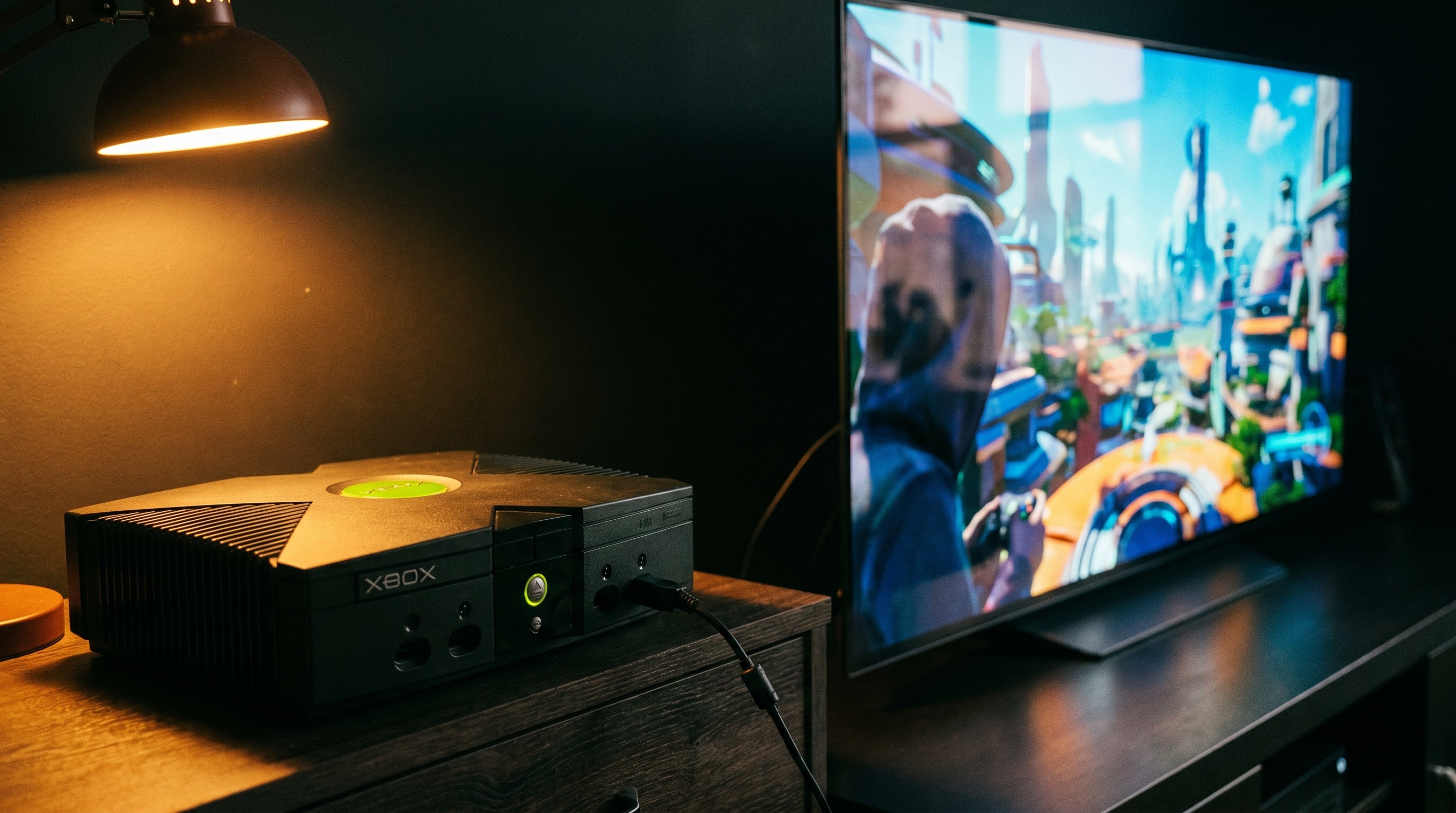
The Original Xbox was ahead of its time in one specific way: Microsoft designed it to support high-definition output from day one. While the PlayStation 2 topped out at 480p and the GameCube never officially supported HD resolutions, the Xbox had component output with 720p and 1080i capability built into the hardware. Many games took advantage of it.
Most people who connect a used Xbox to a 4K TV in 2026 never see any of that. They use a composite cable or a cheap composite-based HDMI adapter, the Xbox outputs 480i, and the 4K TV produces a soft, blurry result. The hardware is capable of better. Getting there requires the right adapter and the right settings.
What the Original Xbox Can Output
The Xbox's capabilities depend on two things: the cable connected to the rear AV port, and the game being played. With a standard composite AV cable, the ceiling is 480i. With a component cable or a component-capable HDMI adapter like the ElectronXout, the ceiling rises considerably.
480i. Standard definition interlaced. The output of the composite AV cable. Available on all games.
480p. Standard definition progressive. Requires component output enabled in the Xbox dashboard. Supported by the majority of the Xbox library — most games have a 480p flag.
720p. HD progressive. Supported by a smaller set of games (roughly 50 to 60 titles). The Xbox has to be configured to allow it, and the game has to declare support for it.
1080i. HD interlaced. Supported by a handful of titles. Rare in practice — most games that list HD support use 720p rather than 1080i.
The original Xbox dashboard controls which resolutions are available. Games select from the enabled options. Enabling all HD modes in the dashboard lets each game run at its maximum supported resolution automatically.
What a 4K TV Does With It
A 4K panel upscales everything below its native 3840 by 2160 resolution. The upscaling algorithm built into the TV determines how good the result looks — and whether the source material is clean or degraded has a direct impact on what the upscaler has to work with.
A 720p component signal from the Original Xbox through the ElectronXout is upscaled by a factor of three. That is a much smaller stretch than upscaling 480i composite by a factor of eight. The 720p output holds together substantially better on a large 4K panel — edges stay clean, colors are accurate, and the result looks like what the game was designed to produce.
The games that support 720p on Xbox — Halo 2, Burnout 3, Project Gotham Racing 2, Forza Motorsport, among others — genuinely benefit from a clean HD signal path to a modern TV. They were designed for HD output and look noticeably better when that output is delivered correctly.
Configuring the Xbox for 4K TV Use
-
1
Connect the ElectronXout to the Xbox AV port and HDMI to your TV. Power on and confirm a picture at the Xbox dashboard.
-
2
Go to Settings, then Video. Check the boxes for 480p, 720p, and 1080i. Apply and confirm.
-
3
Enable Game Mode on the TV. This reduces input lag by bypassing the TV's image processing pipeline. Find it in Picture settings.
-
4
Launch a game and check its video options if available. Some games let you select resolution directly; others detect the dashboard setting automatically.
If the picture drops or goes black after changing HD settings, the TV may not accept a specific resolution. Try unchecking 1080i first — 720p is more universally supported.
TV Settings That Help
-
Game Mode
Essential for reducing input lag. Most 4K TVs achieve 10–20ms in Game Mode. Without it, post-processing can add 50–100ms of lag, which affects gameplay noticeably.
-
HDMI color space / black level
On Samsung TVs: Picture → Expert Settings → HDMI Black Level, set to Low. Prevents color clamping that produces a black screen from limited-range sources.
-
Disable motion smoothing
Motion interpolation (TruMotion, MotionFlow, etc.) adds the soap opera effect to game content. Turn it off. Game Mode often disables it automatically, but verify.
What to Expect
With the ElectronXout and HD output enabled, the Original Xbox looks genuinely good on a modern 4K TV — particularly for games that support 720p. The console was designed for HD from the start, and when you give it a clean signal path and a capable TV, that shows.
For games limited to 480p, the picture is noticeably sharper and more color-accurate than composite would produce, but the lower resolution means the 4K upscaler is doing more heavy lifting. It still looks better than a composite-based setup — just not as dramatic as the jump from 480p composite to 720p component.
For the Original Xbox capacitor situation — which affects picture quality on aging consoles regardless of adapter choice — see our capacitor problem guide. If your Xbox is exhibiting video noise, instability, or clock errors, that is worth addressing before the adapter.
The ElectronXout unlocks the Original Xbox's full HD output capability — 480p, 720p, and 1080i — through the component signal path.
Get the ElectronXout — $41.99 Compare Original Xbox HDMI Adapters
Share:
PS2 Component Cable Guide: Which Cables Work and What to Know
GBS8200 Upscaler Guide: What It Does, Its Limits, and How to Get HDMI Out