


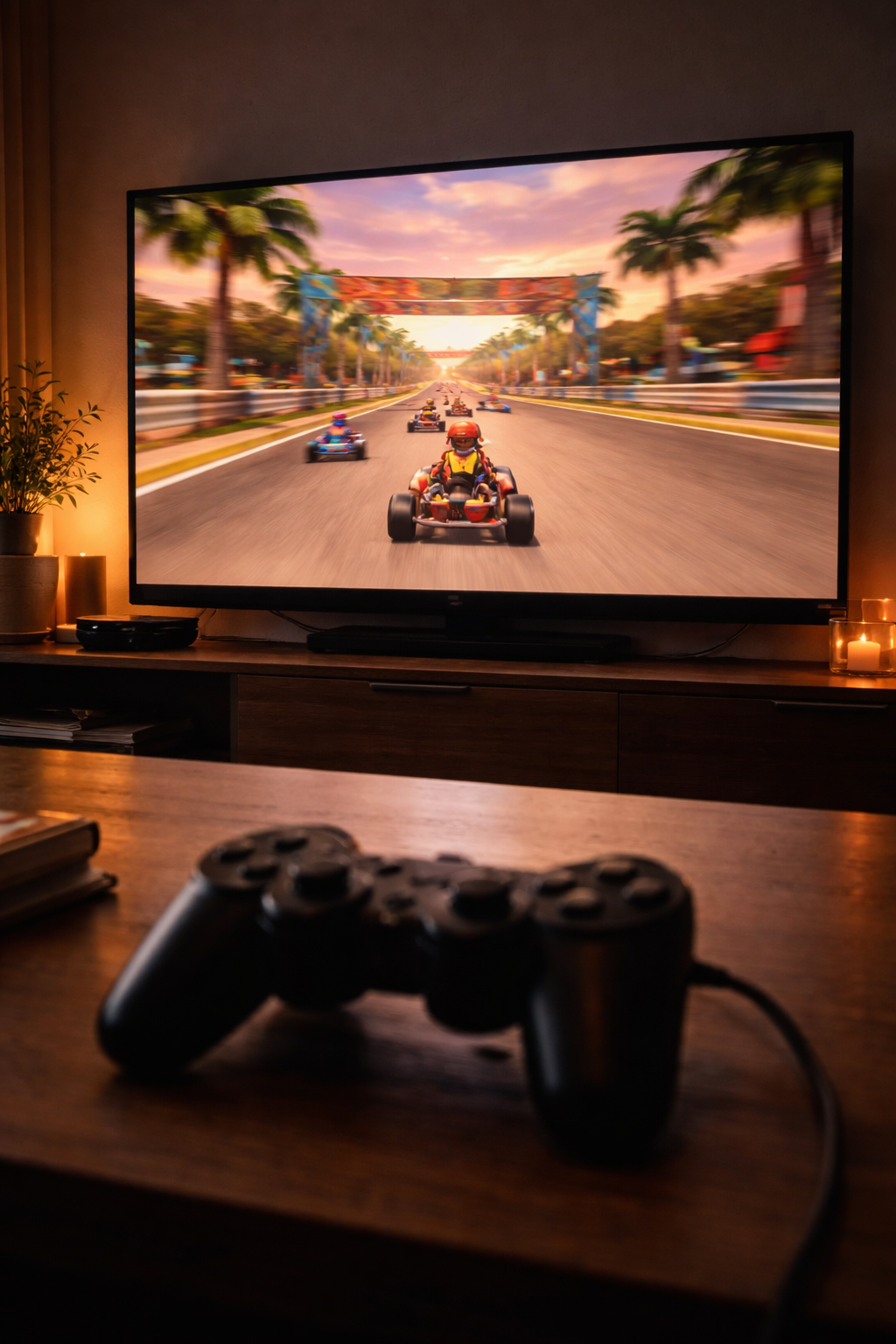
Plugging a PS2 into a 4K television for the first time is one of the more disappointing moments in retro gaming. The library holds up well. The picture often doesn't. What you get is soft, dark, or blurry - and the instinct is to blame the console or the adapter when the real problem is usually something else.
This guide explains what's actually happening between a PS2 and a 4K TV, what you can control, and what the realistic ceiling is.
Why 4K TVs Make This Difficult
The PS2 outputs at 480i for the majority of its library - roughly 640x480 pixels, interlaced. A 4K panel runs at 3840x2160. The TV has to scale the PS2's signal up by a factor of somewhere between 4x and 8x in each dimension.
That scaling process is where most of the picture quality problems originate. Modern 4K TVs use generic upscaling algorithms designed for broadcast content. Those algorithms apply processing that actively works against retro game content, producing a smeared, artificially-smoothed image that can look worse than the same game on a CRT.
There's a secondary issue: many 4K TVs have limited or no support for 480i over HDMI. If your converter is connected and the TV is refusing to display anything, it may be rejecting the 480i signal entirely. The PS2 HDMI adapter guide covers this in detail including how to change the output mode when you can't see the screen.
Start With the Signal Chain
Before adjusting TV settings, the signal getting to the TV needs to be right. Component cables rather than composite, the PS2's output mode set to YPbPr rather than RGB, and a quality converter. The ElectronPulse converts the PS2's component signal to HDMI cleanly - it requires external 5V power via USB-C (any phone charger works). If the signal is compromised before it reaches the TV, no TV setting will fix it.
TV Settings That Actually Help
-
Game Mode
The single most impactful TV-side change. Disables or minimizes the image processing pipeline responsible for most artifacts and all processing lag. Every 4K TV has it. Enable it for the HDMI input your PS2 is connected to before adjusting anything else.
-
Motion smoothing: off
TruMotion (LG), MotionFlow (Sony), Motion Plus (Samsung) - these add artificial frames that create motion artifacts on retro content. Turn off completely.
-
Noise reduction and edge enhancement: off
Designed for broadcast TV, these actively work against retro content. Disable both.
-
Sharpness: lower than default
Most 4K TVs default too high. Try lowering it - sometimes to zero. The natural image is cleaner than what the sharpness algorithm produces on standard definition content.
-
HDMI color range: Full or Auto
The PS2 outputs full-range color. If the TV is set to Limited, the picture looks flat and dark. More on this in the PS2 video quality guide.
-
Aspect ratio: 4:3
Most PS2 games are 4:3. Set to 4:3, Normal, or equivalent. Stretching them to fill a 16:9 screen distorts the geometry of everything on screen.
Enable 480p Where You Can
For games that support progressive scan, enabling it is the most significant picture quality improvement available on the console side. 480p eliminates interlacing, produces sharper motion, and is far more reliably accepted by 4K TVs over HDMI than 480i.
Check the game's options menu for a Progressive Scan setting. If you don't find one, try holding X and Triangle simultaneously as the game boots - many PS2 games support 480p without advertising it in their menus. A full guide to PS2 video settings, including the hidden 480p boot toggle and GSM for softmodded consoles, is in the PS2 video quality guide.
The Realistic Ceiling
No combination of cables, converters, and TV settings changes what the PS2 is outputting. Most of its library is 480i. That's not a failure - it's what it is. The goal is to present that signal as accurately and cleanly as possible on a screen that wasn't designed for it.
At best - quality converter, 480p where supported, Game Mode on, processing off - you get a clean, accurate picture that represents the game as it was made. For titles with strong art direction, that's genuinely good. Shadow of the Colossus, ICO, the Katamari games hold up well on a well-configured 4K setup.
If you want active upscaling with motion-adaptive deinterlacing - handling 480i content in a way most 4K TV internal scalers don't attempt - a dedicated upscaler like the RetroTINK 4K is the honest answer. It's a significant additional investment, but for someone who plays PS2 regularly and cares about the picture, the difference on 480i content is meaningful.
Start with a clean signal
Everything in this guide depends on the signal getting from your PS2 to your TV cleanly. The ElectronPulse was built specifically for the PS2 and PS3 - custom PCB, higher-generation IC, handles both 480i and 480p correctly, compatible with NTSC and PAL. Requires 5V power via USB-C (any phone charger works).
Haven't sorted the adapter and output mode setup yet? The PS2 HDMI adapter guide is the right starting point. For all the console-side settings, the PS2 video quality guide covers everything.
Share:
Wii HDMI Adapter vs. Internal Mod: Which One Do You Actually Need?
Input Lag in Retro Gaming: What It Is, Where It Comes From, and How to Minimize It