Capturing retro console gameplay for streaming or recording is more complicated than modern consoles. Modern systems output HDMI directly, which most capture cards accept without any additional hardware. Retro consoles output analog video — composite, S-Video, component — and getting that to both a display and a capture card at the same time requires a few decisions upfront.
This guide covers how to set up a retro capture chain, how to split the signal correctly, and what each piece of the chain should do.
The Core Problem: One Output, Two Destinations
Most retro consoles have one AV output. A PlayStation 2, Nintendo 64, or Original Xbox has a single connector carrying the video signal. To simultaneously display on a TV and feed a capture card, you have to split that signal — and how you split it matters.
Passive signal splitting (using a cheap Y-splitter) works for some setups but introduces signal degradation: each branch of the split receives a weaker signal than the original. For composite and S-Video sources where signal quality is already limited, this is a meaningful problem. For component video, the impedance mismatch from a passive split can also introduce color artifacts.
The cleaner approach is to use a device designed to split and buffer the signal actively — or to connect two sets of outputs from the same connector if the console supports it.
Splitting the Nintendo Multiout
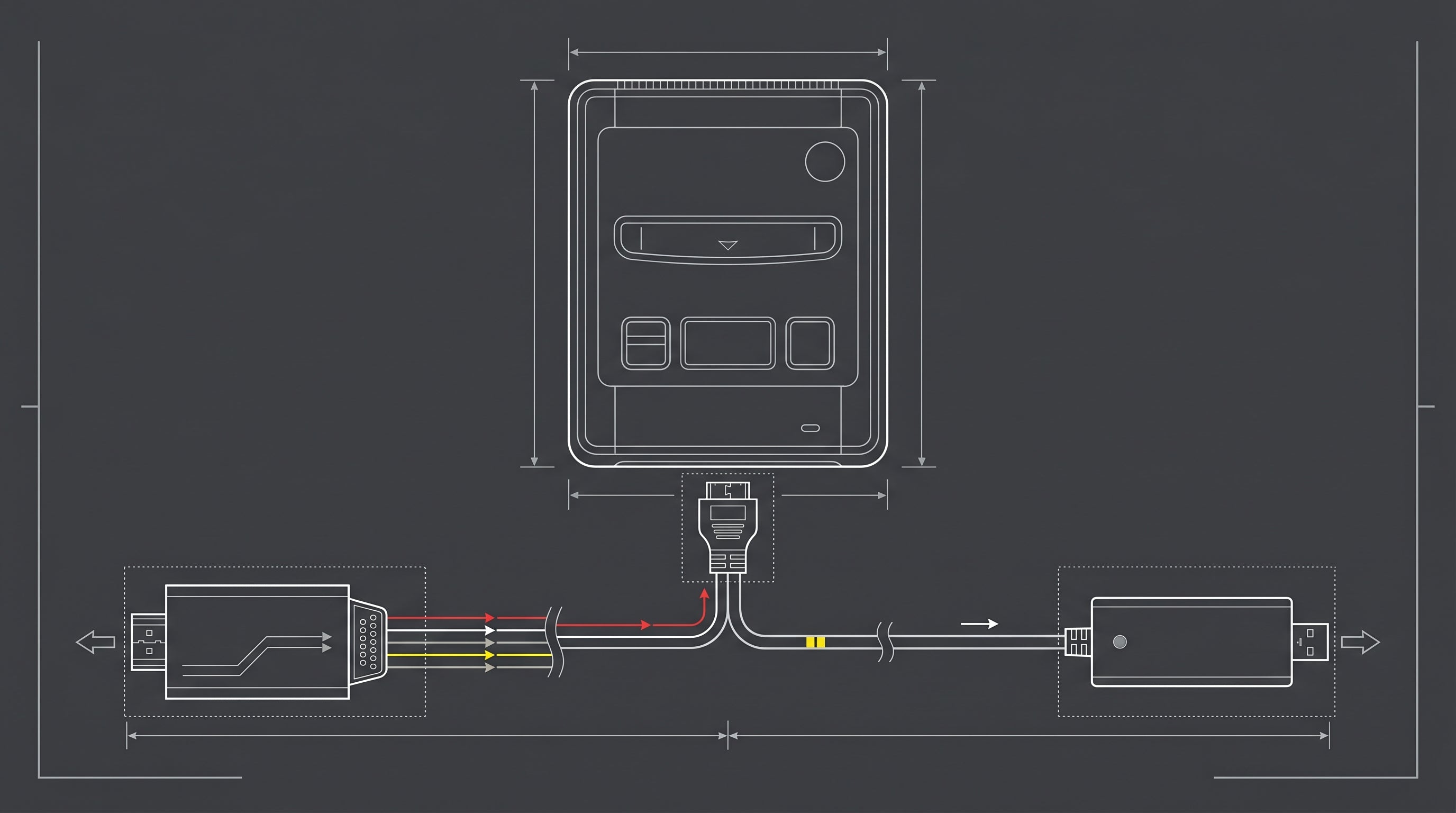
Several popular retro consoles — the SNES, N64, GameCube, and Wii — share the same Nintendo AV Multi Out connector. This connector carries composite, S-Video, and component signals on different pins simultaneously, which creates a useful opportunity: you can connect two separate cables to two separate outputs of the same physical connector.
The ElectronNMB — the Nintendo Multiout Breakout — is designed exactly for this. It fits any console with a Nintendo Multiout and exposes multiple output connections from the single port, allowing you to run one cable to a converter going to your TV and another directly to your capture card simultaneously. No active processing happens — the signal is passed through to each output — so there is no added latency and no quality loss from the split.
For anyone capturing from a Wii, N64, SNES, or GameCube, the ElectronNMB removes the need for signal switching or passive splitters entirely.
What Your Capture Card Accepts
Before buying any additional hardware, check what input your capture card accepts. This determines what adapter you need between the console and the card.
HDMI-only capture cards. The most common type. These require an analog-to-HDMI converter between the console and the capture card. Any component-to-HDMI or composite-to-HDMI adapter in the signal path should add minimal latency — a framebuffer-based adapter will add noticeable delay between gameplay and the capture.
Analog capture cards. Accept composite, S-Video, or component inputs directly. AVerMedia and Elgato produce analog capture products, though this category is shrinking. If your card accepts component, you can connect it directly to the console's component output without any intermediate converter.
Upscaler-to-HDMI path. Devices like the RetroTINK-5X accept analog input and output HDMI. This HDMI output goes directly into the capture card. This is the highest-quality capture path for composite and S-Video sources.
Display Latency vs. Capture Latency
For streaming or recording, the latency that matters for the capture is the latency the audience sees — not what you experience as the player. The capture card and any converter in the path from console to card affect the recorded footage, but what matters for your playing experience is what reaches your display.
Keep the display signal path as short and low-latency as possible. Run the console → converter → TV with the minimum number of processing steps. The capture path can tolerate more processing (since you are not reacting to what you see on the capture) but the recorded footage will look better with a cleaner source signal going in.
For a deeper look at where latency comes from in retro gaming setups, see our retro gaming input lag guide.
A Practical Setup for the Most Common Consoles
Nintendo Wii, N64, SNES, GameCube. Connect via ElectronNMB to split the Multiout. Run one output to a component-to-HDMI converter for the TV; run another to the capture card (analog or via a second converter). For the Wii specifically, the ElectronWarp handles the display path with near-zero latency.
PlayStation 2. The PS2's component output via the ElectronPulse goes to the display. For capture, use a component signal splitter or a second component connection if your capture card accepts it.
Original Xbox. The ElectronXout taps the Xbox's component output for the display, including Dolby Digital 5.1 audio. Capture the component signal separately or use an HDMI splitter after the ElectronXout output.
The ElectronNMB lets you split any Nintendo Multiout console to a display and a capture card simultaneously — no signal switching, no passive splitter degradation.
Get the ElectronNMB — $41.99 Retro Gaming Input Lag Guide
Share:
Original Xbox Dolby Digital 5.1: How to Get Surround Sound From Your Xbox
Does the SNES Have Component Video? What It Has and What to Use Instead