If you've tried connecting a Wii to a modern TV with one of those cheap plug-in adapters and got a black screen, a washed-out picture, or audio that crackles - you're not alone. The Wii is one of the more frustrating consoles to connect to modern displays, and most of the advice online makes it worse rather than better.
The reason nearly always comes down to one thing: the signal the adapter is actually converting. Here's what that means, and why it matters.
What the Wii Outputs - and Why the Cable Choice Matters
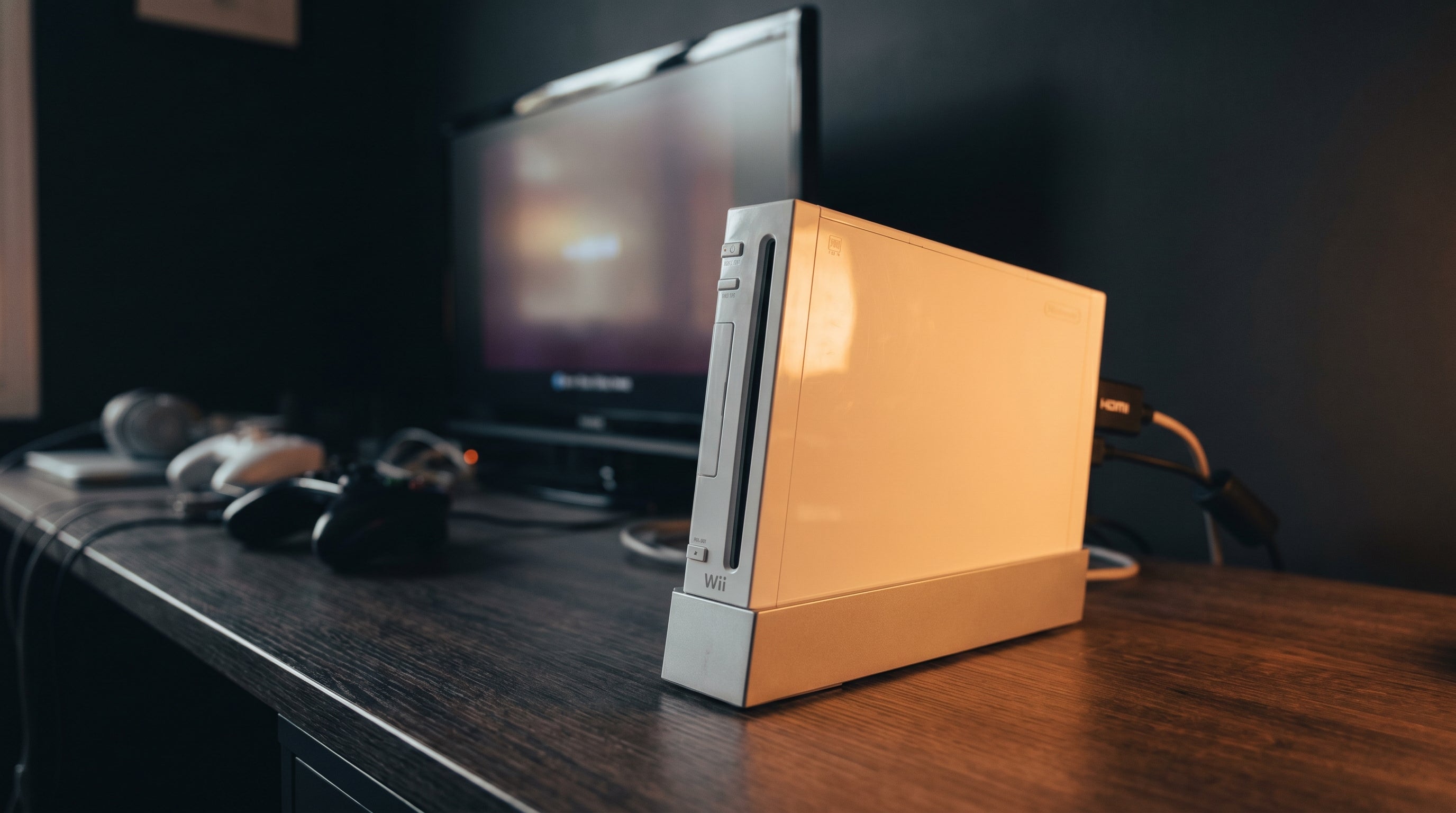
The Wii has a single AV Multi Out port on the back - the same proprietary connector Nintendo used across the GameCube and Wii. This port can carry two fundamentally different signal types depending on what cable you connect to it.
Composite video - the yellow, red, and white cable that shipped in the box. Combines all video information onto a single wire. The lowest-quality output the Wii produces. Soft, prone to color bleed, and increasingly incompatible with modern TVs that have dropped composite inputs entirely.
Component video (YPbPr) - the red, green, and blue cable set. Keeps the brightness and color signals on separate wires. Significantly cleaner, supports 480p progressive scan, and produces the best picture quality the Wii can deliver without opening the hardware. For more on why signal type matters, see the composite vs. component vs. RGB explainer.
The problem: most cheap Wii2HDMI adapters that plug directly into the back of the Wii are converting the composite signal, not the component signal. The connector is the same physical port, but the adapter routes only the composite channels to its internal conversion chip and ignores the component channels entirely. You get a picture - but you're getting the worst signal the Wii produces.
Why Cheap Adapters Look Bad Even When They "Work"
Even among adapters that do convert from component, the IC chip doing the analog-to-digital conversion determines output quality - and budget chips cut corners in ways that show on screen.
Color space is the most common issue. The Wii outputs component video in a limited color range that generic conversion chips frequently misinterpret. The result is colors that look oversaturated and harsh, or alternatively pale and washed out. Either way, the image doesn't look like what the game was designed to look like.
Audio is a close second. Cheap adapters use poorly-filtered audio circuits that introduce static and crackling - most noticeable during quieter moments and menu screens. This is a hardware design problem, and it can't be fixed with a firmware update.
There's also a 480i/480p compatibility issue worth knowing about. Many 4K televisions have poor or no support for 480i resolution over HDMI. If your Wii is outputting 480i and your TV doesn't accept it, you'll get a black screen regardless of adapter quality. Confirm your Wii is set to 480p: Wii Settings > Screen > TV Resolution.
What a Quality Adapter Actually Does
The ElectronWarp starts from the Wii's component output - the best analog signal the console produces - and converts it to HDMI using a custom PCB built around a higher-generation IC than the commodity adapters.
Color space is handled correctly. The Wii's component signal operates in a limited color range, and the ElectronWarp maps this accurately to the HDMI output so colors render as they were designed to. Audio is clean - the crackling and static from cheap adapters is a circuit design problem that the ElectronWarp's properly-filtered audio path eliminates.
There is no added input lag. The conversion is direct with no processing delay. The ElectronWarp draws power directly from the Wii's AV port - no USB cable, no external power adapter.
Setting Up the Wii for Best Results
TV Resolution: Wii Settings > Screen > TV Resolution - set to 480p (EDTV/HDTV). This is the highest resolution the Wii outputs natively. 480p is sharper than 480i and more reliably accepted by modern TVs over HDMI.
Screen Format: Wii Settings > Screen > Screen Format. Most Wii games are 4:3. Leave it at Standard unless you're playing a game that natively supports widescreen. Stretching 4:3 content to fill a 16:9 screen distorts the geometry of everything on screen.
Common Problems and Fixes
-
Black screen with a new adapter
Check the Wii's TV Resolution setting first - 480i is often rejected by modern TVs over HDMI. Set to 480p. If you can't see the menu, navigate blind: select the settings icon on the bottom left of the Wii Menu, go to Screen, then TV Resolution.
-
Washed out or oversaturated colors
Either the adapter is mishandling color space, or your TV's HDMI color range is set to Limited. Check the picture settings for the HDMI input being used and set color range to Full or Auto.
-
Crackling audio
This is the adapter - a hardware problem in the audio conversion circuit that can't be resolved through settings. The solution is a better adapter.
-
Works on one TV but not another
The failing TV is likely rejecting the output resolution over HDMI. Confirm 480p is enabled on the Wii.
-
Using a Wii Mini
The Wii Mini has no AV Multi Out port and cannot use a component adapter. It outputs composite only. If image quality matters, the standard Wii is the better platform.
Plug-and-play or best possible
For plug-and-play: the ElectronWarp accepts the Wii's component signal and converts it to HDMI with correct color handling, clean audio, and no added lag. No external power, no configuration required.
For the absolute best output: the ElectronAVE is an internal mod that taps the Wii's digital video signal before the analog encoder - true digital-to-digital HDMI. Requires soldering skills and opening the console. A full comparison is in the Wii adapter vs. internal mod guide.
Share:
How the ElectronWarp Transforms Your Nintendo Wii Gaming Experience
Wii HDMI Adapter vs. Internal Mod: Which One Do You Actually Need?