

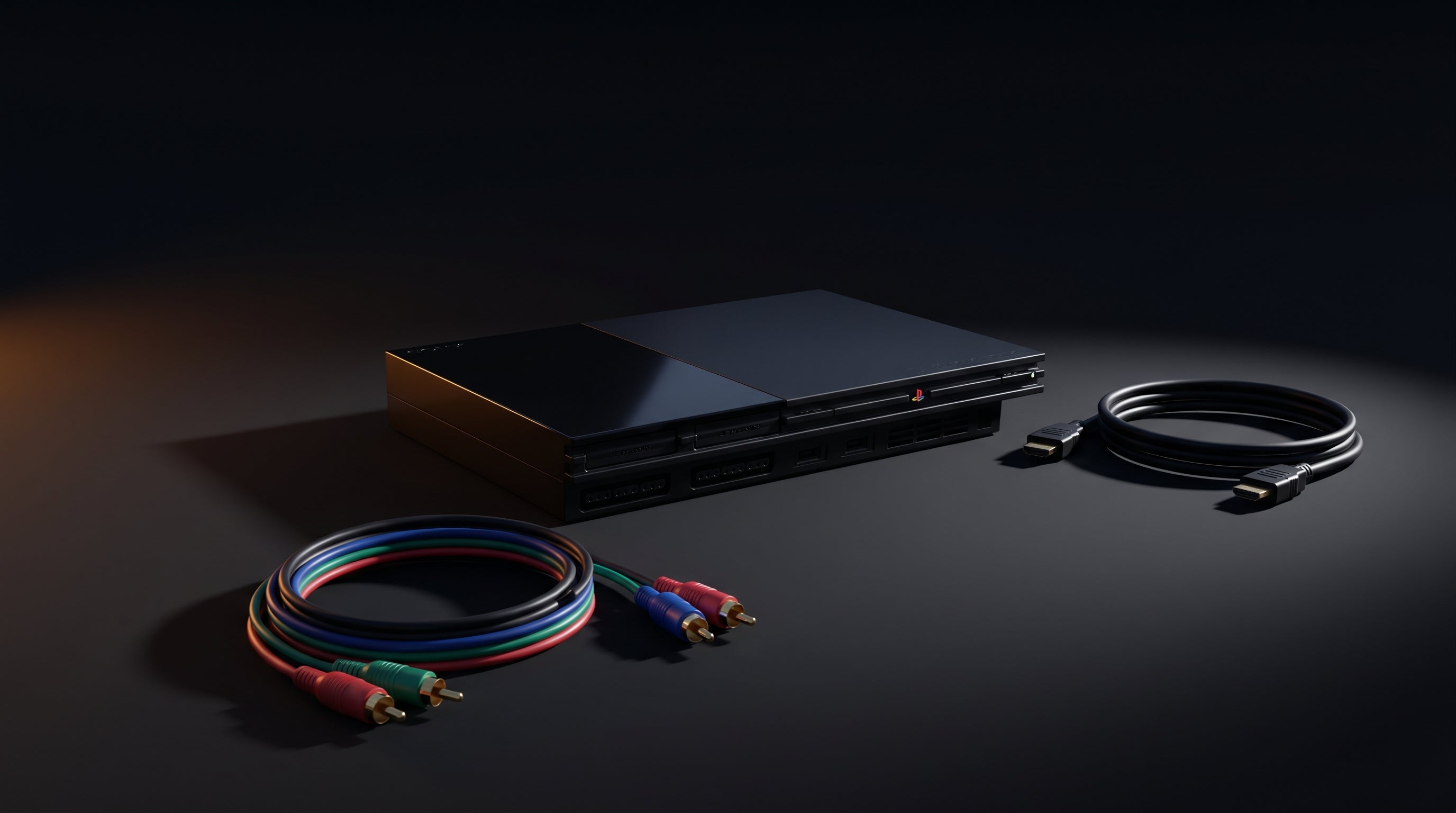
The PS2 is one of the most-played consoles from that generation, but getting it to look right on a modern TV is harder than it should be. The problem is almost never the TV. It is the adapter.
Most products sold as "PS2 HDMI adapters" take a composite signal, the single yellow RCA cable, and upscale it to HDMI. The result is soft, blurry video that looks worse than playing on a CRT. The PS2 can do significantly better, but it requires the right adapter and one console setting that most guides skip entirely.
What the PS2 Actually Outputs
The PS2's AV Multi Out port carries several signal formats, and they are not equally useful. Composite, the single yellow cable, is the worst option. It compresses the full video signal into a single wire, which produces visible color bleed and softness that no downstream upscaler can fully recover. S-Video is a step up. Component video, called YPbPr (a color-difference format that separates brightness from color information across three cables), is the best analog output the PS2 offers.
Component video uses three cables, color-coded red, green, and blue, to carry luminance and two color-difference channels independently. This eliminates color bleed and allows the PS2's full 480i or 480p output to reach the adapter without degradation. The difference versus composite is visible immediately in the sharpness of text and the cleanliness of edges.
For a full explanation of how composite, S-Video, component, and RGB differ at a signal level, the composite vs. component vs. RGB guide covers all of them in detail.
Max resolution. The PS2 outputs up to 480p progressive scan in component mode. A small number of games support 1080i, but 480p is the standard target. Most games render at 480i interlaced.
Component cables. The PS2 did not ship with component cables. Sony sold them separately (SCPH-10150), and they appear on eBay and at used game stores. Licensed Sony cables are the most reliable. Some third-party cables work correctly; others have continuity or impedance issues that are worth ruling out before blaming an adapter.
Why Cheap Adapters Look Bad
Search "PS2 HDMI adapter" and the top results are small plastic dongles with an HDMI output and yellow, red, and white composite inputs. These take the composite signal and convert it to HDMI. That means composite quality, soft and blurry with visible color bleed, delivered over an HDMI cable. The cable is digital; the source material is the worst analog format the PS2 supports. No amount of processing inside the adapter changes what the signal floor is.
A second failure mode is subtler: adapters that accept component cables but still produce a tinted or washed-out image. This is almost always a PS2 configuration problem, not an adapter defect. The PS2 defaults to outputting RGB-encoded signal through the component port, not YPbPr. Most component-to-HDMI adapters expect YPbPr input. When the two formats arrive mixed up, colors shift and the image loses contrast. Section 4 covers the one setting that corrects this.
There is also the input lag issue. Many low-cost adapters apply a framebuffer upscale internally, which adds anywhere from 30 to 200ms of latency. For timing-sensitive games, that is noticeable. The retro gaming input lag guide covers this in more detail if you want to understand what to look for in adapter specs.
The Options Side by Side
There are three practical categories of PS2 HDMI adapter. They are not equivalent, and the price difference is not arbitrary.
| Adapter Type | Input | Power | Input Lag | Image Quality | Price |
|---|---|---|---|---|---|
| ElectronPulse (Electron Shepherd) | Component (YPbPr) | 5V USB-C (any phone charger) | Under 1ms | Full 480p, no color bleed, accurate color | $34.99 |
| Generic component-to-HDMI | Component (varies by model) | Varies (often USB-A) | 30–200ms typical | Acceptable when configured correctly | $12–$25 |
| Composite "PS2 HDMI" dongle | Composite only | None or USB | Varies | Soft and blurry — composite ceiling | $8–$15 |
The ElectronPulse was designed specifically for the PS2 and PS3 and tested against known-good output at both 480i and 480p. It uses a direct analog-to-digital conversion path with no framebuffer, which is why the latency stays under 1ms, verified with a Time Sleuth measurement device. For PS3 use, it also passes Dolby audio through to HDMI. It requires a 5V USB-C power source, which any standard phone charger provides.
Generic component adapters are a reasonable middle option when budget is the constraint. Results vary by unit. The critical thing to verify before buying is that the adapter specifically accepts YPbPr input, not only VGA or RGB. Many listings are vague about this, and the specifications sections often contradict the product descriptions. The PS2 video quality guide covers what to look for in adapter specs in more detail.
Composite dongles are not worth recommending for the PS2. The signal floor is too low to produce a clean image regardless of how capable the upscaler inside is.
Setting Up the PS2 for Component Output
This step is the one most guides skip, and it is the reason many people see tinted or washed-out images even with the right adapter and cables. The PS2 defaults to RGB signal output through the component port. Component adapters expect YPbPr. You need to tell the console which format to use before the image will look correct.
The setting lives in the PS2 System Configuration menu, accessible without a game disc. Here is the exact navigation:
-
1
Power on the PS2 without a disc inserted. The console will boot to the Browser and System Configuration screen automatically.
-
2
Select System Configuration using the D-pad and the X button.
-
3
Navigate to Component Video Out. On some firmware versions this is labeled "Component / D-Terminal."
-
4
Set the output to YCbCr. This is Sony's label for YPbPr in the PS2 menu. They are the same signal format under different names. Do not select RGB when using a component-to-HDMI adapter.
-
5
Confirm and exit. The setting saves to the memory card automatically. You only need to do this once per console.
If the screen goes black after changing the setting, the adapter may need a moment to lock onto the new signal. Power cycle the PS2 if the image does not return within a few seconds.
Once this is set, most component adapters will display a correct, full-color image. If colors are still off after this step, the problem is typically a cable with a wiring fault or an adapter that genuinely does not accept YPbPr input despite labeling that suggests otherwise.
What to Expect and How to Troubleshoot
Even with the right adapter and settings dialed in, a few issues come up consistently. Here is what causes them and how to address them.
-
Green tint or washed-out colors
The PS2 is outputting RGB signal and the adapter is interpreting it as YPbPr. Go to System Configuration and change Component Video Out to YCbCr as described in the steps above.
-
No signal on the TV
Test the PS2 first with the composite cable to confirm the console and TV are working. Then check that all component cables are fully seated at both ends and going to the matching color-coded ports. If the ElectronPulse has no power LED, check the USB-C power connection.
-
Image is blurry even with component cables
Most PS2 games render at 480i interlaced, not 480p. On a modern TV with noise reduction or motion smoothing engaged, 480i can look noticeably soft regardless of the adapter. Disable those processing modes or enable Game Mode on the TV. Some games support 480p and will look sharper with that enabled in the game's own options.
-
Input feels sluggish
Most of the perceived lag on modern TVs comes from the TV's internal processing pipeline, not the adapter. Enable Game Mode if the TV has it. This typically cuts 50 to 100ms of display lag. The ElectronPulse adds under 1ms to the signal chain on its own and is not the source of sluggishness in any setup we have tested.
-
No audio
The PS2's audio outputs share the same AV Multi Out connector as video. Make sure the red and white RCA audio cables are connected to the adapter's audio inputs alongside the three component video cables. All five connections need to be made for both video and audio to work.
For a broader look at getting the best picture from a PS2 on a 4K TV, including TV-side settings and upscaler options, see the PS2 on a 4K TV guide.
The ElectronPulse — Built for PS2 and PS3
The ElectronPulse converts component video from the PS2 or PS3 to HDMI with under 1ms of added latency. It requires a 5V USB-C power source, any standard phone charger works. No drivers, no configuration menus, no framebuffer delay.
$34.99. Designed, tested, and supported by Electron Shepherd.
Share:
Original Xbox on a Modern TV: The Complete Setup Guide
Wii2HDMI Not Working? Fix No Signal, Black Screen, and Flickering