

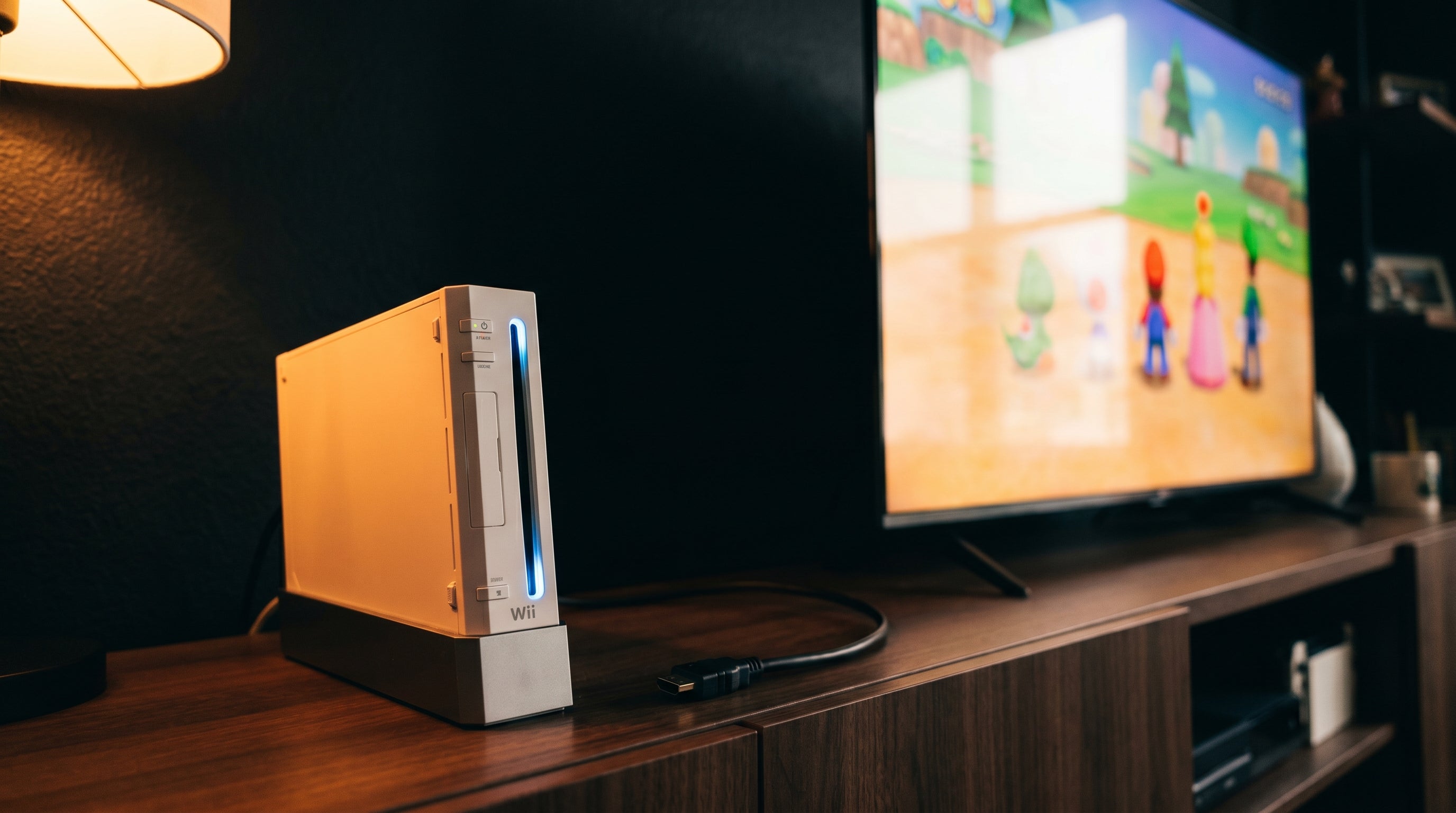
The Nintendo Wii outputs at 480i or 480p — standard definition, designed for CRT televisions that shipped before 4K was a concept. Connecting it to a 65-inch 4K panel and expecting the picture to look the same as it did on a CRT in 2007 is not a realistic expectation. But connecting it correctly can produce a clean, sharp result that looks much better than it has any right to.
The variable that matters most is not the TV — it is the signal you give the TV to work with. A clean 480p component signal upscaled by a modern panel looks noticeably better than a 480i composite signal going through the same upscaler. This guide explains why, and what to do about it.
What the Wii Actually Sends to Your TV
The Wii has two resolution modes: 480i (standard definition interlaced) and 480p (standard definition progressive). 480i is the default. 480p is available if you enable EDTV or HDTV mode in the Wii's display settings and use a cable or adapter that supports it.
480i. Each frame is drawn in two passes — odd-numbered lines first, then even. The default Wii output. Most HDMI adapters output this. Some modern 4K TVs have trouble accepting 480i over HDMI, producing a no-signal error.
480p. Each frame is drawn in a single pass. Sharper, more stable, and more compatible with modern TVs. Requires the Wii to be set to EDTV/HDTV mode. Only available through adapters that use the component signal path — composite-based adapters cannot output 480p regardless of settings.
This is the first place where adapter choice determines picture quality. A cheap composite-based adapter locks you at 480i. The ElectronWarp uses the Wii's component signal path and supports both 480i and 480p — so if you have EDTV mode enabled, it passes the 480p signal through correctly.
What a 4K TV Does with a 480p Signal
A 4K television has a native resolution of 3840 by 2160 pixels. The Wii outputs 720 by 480 pixels at 480p. The TV has to upscale that signal by a factor of roughly 4.5 in each direction to fill the screen.
That upscaling is done by a chip inside the TV, and the quality of that upscaling varies significantly by manufacturer and model. High-end Sony and LG panels have dedicated upscaling processors that handle standard-definition sources reasonably well. Budget panels use simpler scaling algorithms that produce softer results with more visible artifacts.
What all upscalers have in common is that they can only work with the information they are given. A clean 480p component signal gives the upscaler accurate color data and a sharp luminance channel to work with. A 480i composite signal gives it blended, lower-bandwidth color data drawn in alternating half-frames. The upscaler will do its best with either, but the output from the composite signal will always be softer.
Input Lag on a 4K TV
Input lag — the delay between a controller input and the resulting action on screen — is largely a function of the TV, not the console or adapter. Modern 4K TVs have a Game Mode that reduces processing lag by bypassing the TV's image processing pipeline. This is worth enabling regardless of what you're playing.
Game Mode. Disables most post-processing (noise reduction, motion smoothing, local dimming adjustments) to reduce the signal path through the TV. Most 4K TVs achieve 10–20ms of lag in Game Mode. Without it, some TVs exceed 100ms, which is noticeable on fast-paced games.
The HDMI adapter itself adds negligible lag — well under 1ms for any decent converter chip. If you're experiencing noticeable input lag on the Wii, Game Mode on the TV is the first thing to check. For a full breakdown of lag in retro gaming setups, see our input lag guide.
TV Settings That Help
A few TV settings make a meaningful difference with the Wii on a 4K panel.
-
Enable Game Mode
Reduces input lag by disabling unnecessary image processing. Find it in the TV's picture or display settings. On most TVs it is a toggle within the Picture Mode options.
-
Disable sharpening and noise reduction
These filters are designed for live broadcast content and add artifacts when applied to clean game video. Turn them off, or set them to zero. The Wii's output does not benefit from them.
-
Set HDMI color space to Auto or Limited
Prevents color clamping that can produce a black screen or washed-out picture. On Samsung TVs this is HDMI Black Level (set to Low). On LG TVs, turn off HDMI ULTRA HD Deep Color for the port connected to the Wii.
-
Disable motion smoothing
Motion smoothing (called TruMotion, MotionFlow, Auto Motion Plus by different brands) interpolates extra frames and creates the "soap opera effect." It does not improve game video and often introduces visual artifacts. Turn it off.
What to Expect - Honestly
A well-connected Wii on a good 4K TV through the ElectronWarp looks clean and sharp for a 480p source. Games with bold art styles - Wind Waker, Super Mario Galaxy, Metroid Prime - hold up particularly well because their visual design does not depend on fine texture detail. Games that relied on the CRT to soften pixel edges may look harder and more pixelated than you remember on a modern flat panel.
The picture will not look like a remaster. The Wii is a 2006 console and the geometry reflects it. What a good setup gives you is the best version of what the Wii is actually capable of — clean color, stable signal, no composite softness, and no input lag fighting your gameplay.
For more on troubleshooting Wii video issues on modern TVs, see our Wii2HDMI troubleshooting guide.
The ElectronWarp gives your 4K TV the cleanest possible Wii signal to work with — component path, 480p support, no configuration required.
Get the ElectronWarp — $23.99 Compare Wii HDMI Adapters
Share:
SNES RGB: How to Get the Best Picture From Your Super Nintendo
Sega Genesis on a Modern TV: HDMI Options and the Jailbar Problem