The PS3 is one of the easiest consoles to connect to a modern TV. Unlike every PlayStation before it, the PS3 shipped with a built-in HDMI port on every model ever made. You do not need an adapter, a converter, or a special cable. For most people, the answer is: plug in an HDMI cable and you are done. The complications show up when you want to play PS2 or PS1 discs, and that is where model differences actually matter.
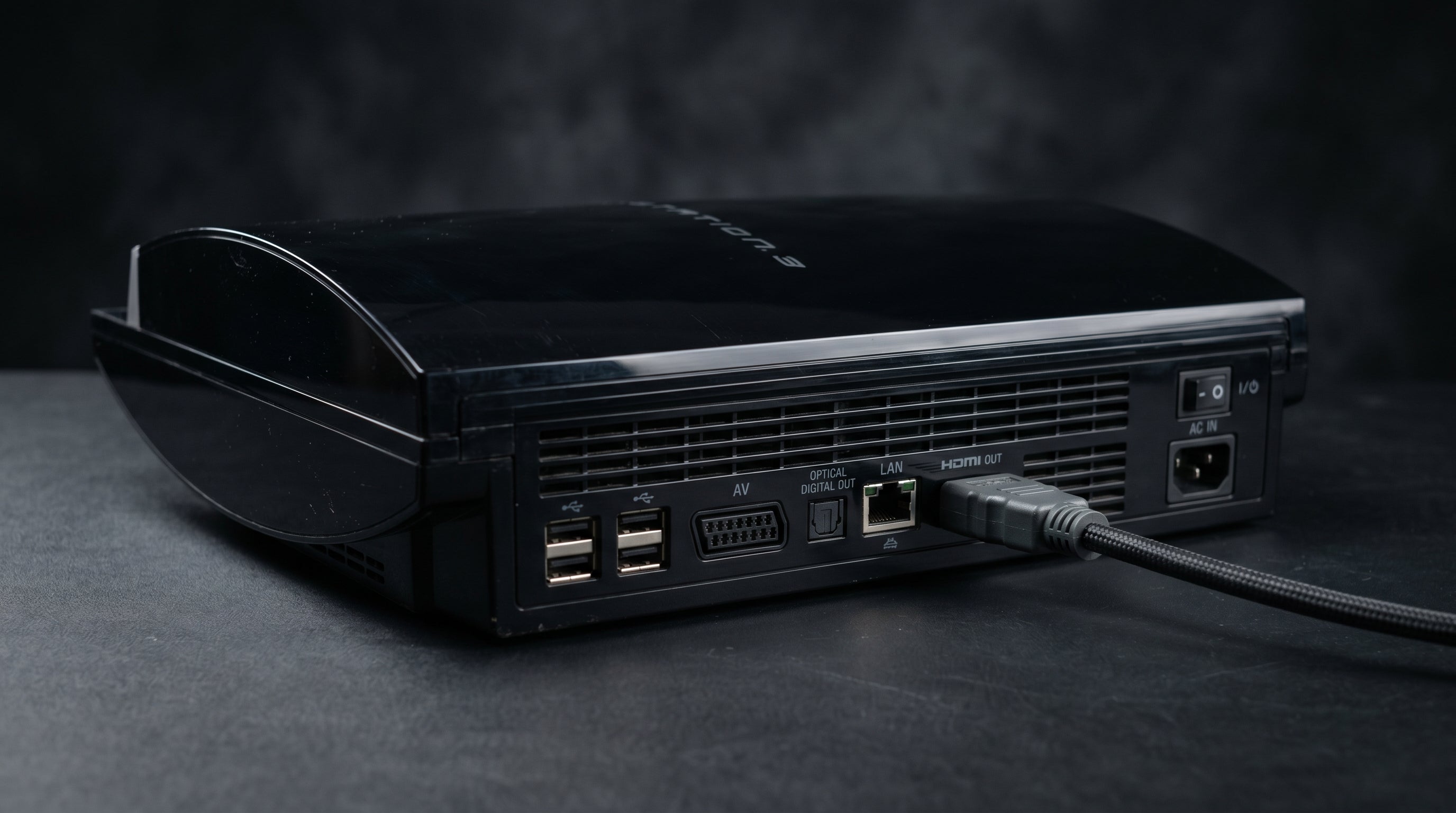
All PS3 Models Have HDMI
This is a common point of confusion. People who remember that the PS1 and PS2 had no HDMI assume the same was true for the original PS3. It was not. The very first launch unit, the 60GB fat PS3 (model CECHA), shipped with HDMI 1.3 in November 2006. Every model that came after it did too.
The PS3 also has an AV Multi Out jack, which uses the same physical connector as the PS2. That port is there for owners of older TVs without HDMI inputs, allowing component video or composite output through a legacy cable. It is not a substitute for HDMI. If your TV has HDMI inputs, use the HDMI port.
The PS3 supports HDMI 1.3, which is sufficient for 1080p output and bitstream audio (Dolby TrueHD and DTS-HD Master Audio where supported). On first boot with an HDMI cable connected, the PS3 will automatically detect the display and set the output resolution. If you ever need to reset the video output, hold the power button for about five seconds after the console beeps once.
PS3 Model Comparison: HDMI, PS2 Compatibility, PS1 Compatibility
Every model has HDMI. The differences that matter are around backwards compatibility.
| PS3 Model | HDMI | PS2 Disc BC | PS1 Disc BC |
|---|---|---|---|
| 60GB Fat (CECHA) | Yes | Yes (hardware) | Yes |
| 80GB Fat early (CECHL) | Yes | Yes (hardware) | Yes |
| 80GB Fat later (CECHK+) | Yes | No | Yes |
| 40GB Fat (CECHG) | Yes | No | Yes |
| 160GB / 320GB Fat | Yes | No | Yes |
| PS3 Slim (all models) | Yes | No | Yes |
| PS3 Super Slim | Yes | No | Limited |
The super slim removed disc-based PS1 support for some titles. If you specifically want to play PS1 discs, a fat or slim PS3 is the safer choice.
About PS3 Backwards Compatibility for PS2 Games
Hardware PS2 backwards compatibility on the PS3 is genuinely rare. Only the original 60GB launch model (CECHA) and the early 80GB (CECHL) units contain the Emotion Engine and Graphics Synthesizer chips from the PS2. A subset of CECHK units use software emulation for PS2 disc support, with a meaningfully smaller compatible game list.
Every other PS3 model, including all slims and super slims, can only play PS2 games purchased as PS2 Classics from the PlayStation Store. That library is limited. Physical PS2 discs will not work on those models at all.
If you want to play your PS2 disc collection and the best picture quality matters, there are two real paths: find a hardware-compatible PS3 (60GB or early 80GB fat), or keep a standalone PS2 in your setup. Both approaches have tradeoffs, and the PS3 backwards compatibility guide goes deeper on both.
PS2 Games on a Backwards-Compatible PS3 via HDMI
When a hardware-compatible PS3 runs a PS2 disc, it outputs the result through its own video pipeline, including the HDMI port. The PS3 does some upscaling of the PS2 signal, and in most cases the output through HDMI looks better than connecting a standalone PS2 via component cable to a modern TV. The analog-to-digital conversion step is eliminated entirely.
If you are in this situation, you do not need the ElectronPulse or any other converter. The PS3's built-in HDMI port is handling everything. Just use a standard HDMI cable.
The catch is that the compatibility list is not perfect even on the 60GB and early 80GB models. A small number of PS2 titles have rendering issues or audio bugs in hardware emulation mode. For most games, it works well. For the occasional problem title, a standalone PS2 is the fallback.
Understanding the underlying signal types is helpful here. Our overview of composite vs. component vs. RGB for retro gaming explains why digital HDMI output from the PS3 sidesteps the analog quality issues that affect a standalone PS2 connected to a modern TV.
PS1 Games on PS3
All PS3 models except the super slim handle PS1 discs reasonably well via software emulation. The PS1 outputs at 240p (most 2D games) or 480i (many 3D games). The PS3 upscales this through its HDMI output, and the result is adequate for most games.
PS1 games are running on a console they were not designed for, and some titles have minor emulation quirks. For the best possible PS1 picture quality, a dedicated upscaler with proper 240p handling (like the RetroTINK-5X) produces sharper output than the PS3's internal scaler. But for casual play, the PS3 path works and requires no additional hardware.
If you are interested in getting the cleanest picture from PS1 games specifically, the PS1 HDMI connection guide covers the options including dedicated signal paths from the original hardware.
If You Have a Standalone PS2 and Want HDMI
The PS3 story above does not apply if you are running a standalone PS2. A PS2 has no HDMI port, and its best analog output is component video (YPbPr — the red, green, and blue RCA cables that carry a higher-quality signal than composite). Getting that signal to a modern TV requires a converter.
The ElectronPulse converts the PS2's component video output to HDMI. It connects between the component cable and your TV, with near-zero latency and no meaningful picture degradation. This is the recommended path for anyone keeping a standalone PS2 in their setup.
The first step is getting the right component cable for the PS2. Our PS2 component cable guide covers which cables work and what to avoid. Once the cable is in place, the ElectronPulse sits between that cable and your TV's HDMI input.
The ElectronPulse also works with PS3 if you prefer using the component output from a PS3 instead of its HDMI port, though there is no advantage to doing so on a PS3. For a full comparison of PS2 HDMI options, see the PS2 HDMI adapter guide.
What About "RCA to HDMI Converter for PS3"?
This search comes up a lot, and it usually means one of two things. Either someone has a PS3 with an older cable setup and wants to know if they can use it on a modern TV, or they have confused the PS3's AV Multi Out with the PS2's situation.
The answer is the same either way: you do not need an RCA or component-to-HDMI converter for the PS3. The PS3 has a native HDMI port that outputs a full digital signal. Using the AV Multi Out into a converter adds an analog conversion step that reduces quality for no reason.
If your PS3 is connected via composite or component cables right now, unplug them and use an HDMI cable instead. The picture will be noticeably better, and you will not need any additional hardware.
PS3 video output summary. HDMI 1.3 port: yes, on all models. AV Multi Out (component / composite / S-Video): yes, on all models. Maximum resolution via HDMI: 1080p. Maximum resolution via component: 1080i. Use HDMI unless your TV lacks HDMI inputs.
Frequently Asked Questions
Do I need an adapter to connect a PS3 to HDMI? No. Every PS3 model shipped with a built-in HDMI 1.3 port on the rear panel. Plug in any standard HDMI cable and the console will auto-detect your display on first boot. No adapter is needed.
Which PS3 models play PS2 discs? Only the original 60GB fat PS3 (CECHA) and a portion of the 80GB fat models (CECHL and some CECHK units) include hardware PS2 backwards compatibility. All later fat models and every slim and super slim PS3 removed this. Those later models can only play PS2 Classics purchased from the PlayStation Store, not physical PS2 discs.
Can I use an RCA-to-HDMI converter with a PS3? You can, but there is no reason to. The PS3 has a native HDMI port that outputs a full digital signal. Using an RCA or component cable into a converter adds an unnecessary analog conversion step and degrades quality. Just use the HDMI port directly.
If you are running a standalone PS2 alongside your PS3, or if you picked up a PS2 specifically for its wider disc compatibility, the ElectronPulse converts the PS2's component video output to HDMI with near-zero latency. It is the cleanest way to get a standalone PS2 on a modern TV.
See the ElectronPulse PS2 HDMI adapter guide
Share:
Cheap Composite-to-HDMI vs Component-to-HDMI: Why the Signal Path Matters
How to Connect a GameCube to a Modern TV