


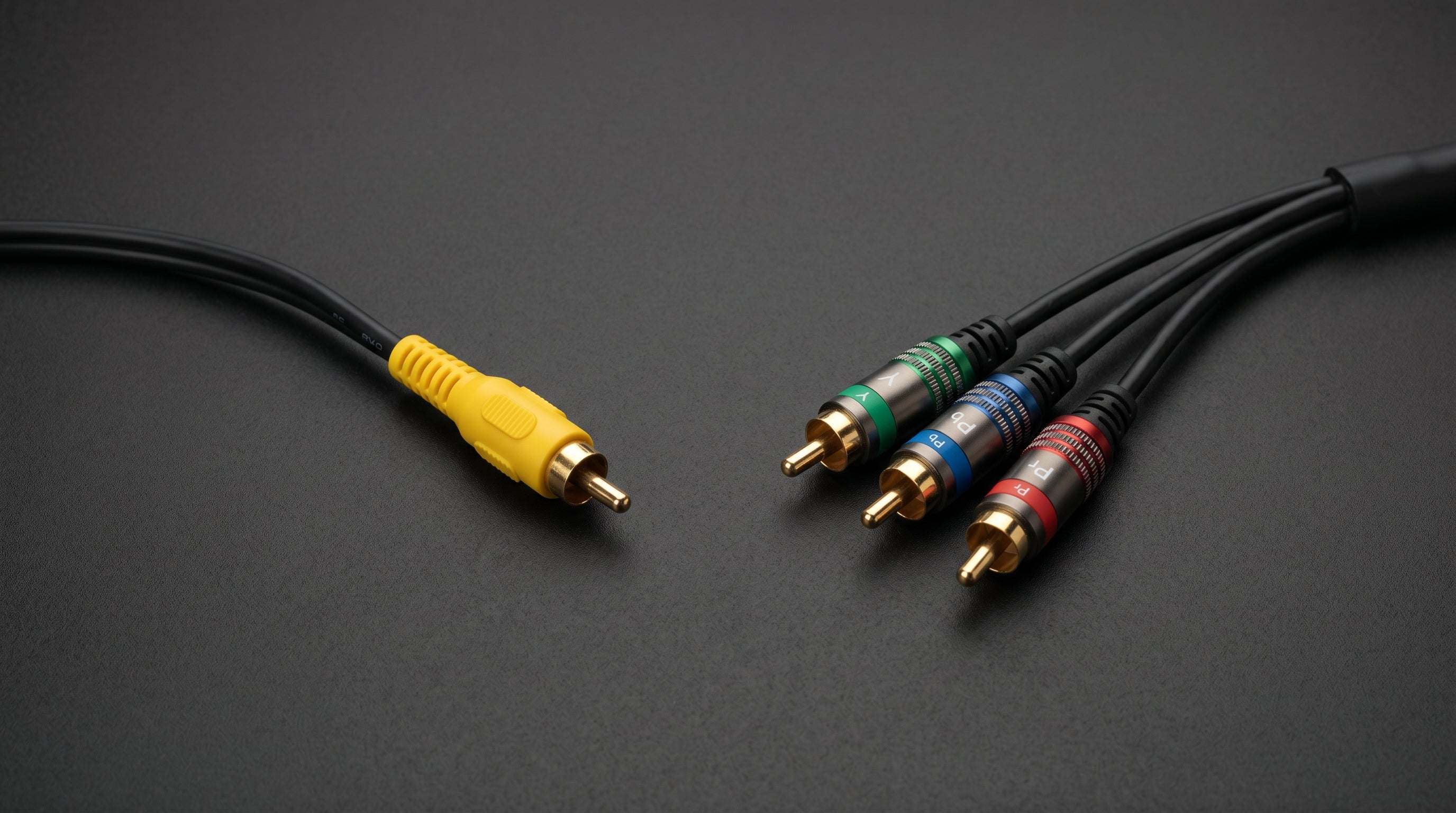
When someone compares a $15 retro HDMI adapter to a $35 one and asks why the price difference exists, the answer almost never comes down to build quality alone. It comes down to which signal the adapter starts from. Most cheap retro HDMI adapters accept a composite video input — the single yellow RCA cable. Better adapters accept component video (YPbPr — the three-cable set in green, blue, and red). Those two signals are fundamentally different, and that difference determines the quality ceiling no matter how good the conversion hardware is.
Composite: What the Signal Contains Before the Adapter
Composite video encodes everything — brightness, color, and synchronization — into a single signal carried on one cable. That sounds convenient, and it is. It is also why composite looks the way it does.
The encoding works by adding a color subcarrier to the luma (brightness) signal. In NTSC, that subcarrier runs at 3.58 MHz, sitting in the upper frequency range of the luma signal's bandwidth. When a console outputs composite video, the color information is already baked into the signal in this form. By the time the cable reaches an adapter, the chroma and luma are mixed together.
Dot crawl. The 3.58 MHz chroma subcarrier interferes with high-contrast luma edges. Where a sharp color boundary exists — a white UI element against a dark background, for example — the subcarrier frequency produces a shimmering, crawling pattern along the edge. This is not a display problem or an adapter problem. It is a property of how composite encodes color information.
Color smearing. The bandwidth allocated to the chroma subcarrier is approximately 1.3 MHz, compared to roughly 4.2 MHz for luma. That narrow chroma bandwidth means colors cannot resolve fine horizontal detail. A solid-colored object will bleed a few pixels beyond its actual edge. The color smear you see is not the adapter's output — it was already in the signal.
These artifacts exist in the composite signal before the adapter sees it. A composite-to-HDMI adapter receives a signal where the damage has already been done. It can pass through the best version of that signal, and a well-designed adapter will do that more cleanly than a cheap one. But it cannot undo the encoding step. The chroma subcarrier interference cannot be fully recovered once the signal has been composited.
Some adapters also mishandle 240p (the non-interlaced low-resolution mode used by many retro games), treating it as 480i interlaced video and applying a deinterlacing pass that introduces motion artifacts. This is a separate problem from the signal quality issue, but it is common in cheap composite adapters and makes the picture even worse on games that use 240p.
For a broader explanation of how composite, component, and RGB relate to each other across consoles, the composite, component, and RGB retro gaming guide covers the full picture.
Component: Why a Cleaner Input Produces a Cleaner Output
Component video (YPbPr) separates the signal that composite merges together. Instead of encoding color into the luma signal via a subcarrier, component transmits three separate channels: Y (luma — brightness and sync), Pb (blue color difference), and Pr (red color difference). The three cables carry these signals independently.
Because luma and chroma are never combined, the problems that composite encoding creates simply do not exist in a component signal:
There is no chroma subcarrier to interfere with luma edges, so there is no dot crawl. Color resolution is not limited to a 1.3 MHz subcarrier channel, so colors do not smear horizontally. The full luma bandwidth is available without chroma interference, so fine detail in the brightness channel comes through cleanly.
Y channel. Luma signal — carries brightness and sync information. Identical in concept to the luma content in composite, but without the chroma subcarrier added.
Pb channel. Blue color difference (B minus Y). Transmitted independently of luma.
Pr channel. Red color difference (R minus Y). Transmitted independently of luma. Green is mathematically derived from Y, Pb, and Pr at the display end.
A component-to-HDMI adapter receives this clean, separated signal and converts it to digital. It has more accurate color information to work with and does not have to deal with any of the encoding artifacts that composite introduces. The output is better because the input is better — the adapter did not have to compensate for anything that was never a problem.
Component also supports higher resolutions. A composite signal is limited to standard definition interlaced formats (480i in NTSC). Component can carry 480p (progressive scan) and, in some consoles, 1080i. That means a console that supports 480p output — the PS2 with supported games, for example — can actually deliver a progressive picture through a component-to-HDMI adapter. That is not possible through composite at all.
Side-by-Side: The Same Console Through Both Paths
The difference is most visible on consoles that can output both composite and component, because you can compare the two paths on identical hardware with identical software.
PS2. A cheap composite-to-HDMI adapter connected to the PS2's composite output will show dot crawl along UI elements, color bleeding, and no access to 480p even on games that support it. The PS2's composite output is 480i only. The ElectronPulse connects to the PS2's component output via the multi-AV connector, receives a separated YPbPr signal, and delivers the full chroma bandwidth with 480p support on compatible games. The input signal is categorically different, and the output reflects that. The PS2 HDMI adapter guide goes into more detail on what to expect from each path.
Wii. Most cheap Wii2HDMI adapters use the composite signal from the Wii's AV Multi Out connector — not the component path that the Wii also supports. The Wii can output component video through the same connector using the Nintendo RVL-011 component cable, which accesses the component output pins rather than the composite pin. A cheap Wii2HDMI adapter is wired to the composite pin, so it inherits all of the composite artifacts described above. The ElectronWarp uses the analog output path of the Wii's AV Multi Out with a properly designed audio stage; for component-quality output from the Wii, you would use a component cable into the ElectronAnalog. For more on Wii adapter options, see the Wii to HDMI adapter guide.
In both cases, the picture improvement from the composite path to the component path is not subtle. Dot crawl disappears. Colors stay within their boundaries. The image looks like what the console was actually rendering, rather than what survived the composite encoding and decoding process.
Which Consoles Can Output Component Video
Not every console can output component video, which is part of why composite adapters exist and are sold. Here is where component is and is not available:
PlayStation 2. Component output via the multi-AV connector. Requires a PS2 component cable (not the standard composite cable). Supports 480p on compatible games. See the PS2 component cable guide for cable specifics.
PlayStation 3. Component output via the multi-AV connector (same physical connector as the PS2 component cable). Supports up to 1080i over component. Also has a built-in HDMI port on all models, so a component adapter is typically only relevant for PS2 backwards compatibility on early models.
Nintendo Wii. Component output via the AV Multi Out connector using the Nintendo RVL-011 component cable. The same connector carries both composite and component signals on different pins. Supports 480p and 480i.
Original Xbox. Component output via the custom AV connector using the Microsoft HD AV cable. Supports 480p, 720p, and 1080i on compatible games and dashboard settings.
GameCube (DOL-001 only). Component output is available on the original DOL-001 model via the Digital AV Out port using the Nintendo DOL-002 component cable. The later DOL-101 revision removed the Digital AV Out port and is limited to composite and S-Video. See the GameCube DOL-001 vs DOL-101 guide for details on identifying your model.
Consoles that predate component video — NES, SNES, N64 (in standard configuration), Sega Genesis — do not have component outputs. For those systems, composite, S-Video (where available), or RGB are the analog options. S-Video is notably better than composite for the same reason component is better: it separates luma from chroma, avoiding the subcarrier mixing problem.
When Composite Is Your Only Option
Sometimes a composite adapter is the correct answer. If your console does not output component video, or if you do not have a component cable and only have the composite cable that came in the box, a composite-to-HDMI adapter is how you get a picture on a modern TV. That is a legitimate use case.
The key is going in with accurate expectations. You are not getting a component-quality picture. You are getting the best possible rendition of a composite signal, which still contains dot crawl, color smearing, and the bandwidth limitations that composite encoding imposes. A better-quality composite adapter will handle the signal more cleanly than a cheap one, and will correctly process 240p instead of misidentifying it as 480i — but the ceiling is defined by the signal, not the adapter.
If picture quality matters to you and your console supports component output, use a component cable and a component-to-HDMI adapter. If you are stuck with composite and want to make the best of it, use a reputable adapter that handles 240p correctly. Avoid adapters that claim to "upscale" composite to 1080p or 4K with the implication that this improves quality — it scales the resolution up, but the composite artifacts scale up with it.
Frequently Asked Questions
Can I improve a composite adapter's picture with TV settings? Not in any meaningful way. TV sharpness controls and noise reduction filters can slightly soften dot crawl visually, but they cannot recover chroma information that was never there. The artifacts are encoded into the composite signal before the adapter receives it. No amount of post-processing can reconstruct the original color data once it has been merged with the luma signal and band-limited to the chroma subcarrier bandwidth.
Are composite-to-HDMI adapters ever worth buying? Yes, in one specific situation: when composite is the only output option available and you need to connect to a modern TV with only HDMI inputs. Some older consoles — the NES, Atari 2600, and lower-end variants of otherwise capable systems — output composite only. In those cases, a composite-to-HDMI adapter is the right answer. The point is to go in with accurate expectations: you are getting the best version of a composite signal, not a component-quality picture.
Do component cables work with every HDMI TV? Not directly. Component video (YPbPr) is an analog signal, and modern TVs do not have analog component inputs. You need an adapter to bridge from the console's component output to your TV's HDMI input. That is exactly what component-to-HDMI adapters do. If your TV happens to have a component input, you can connect directly with cables and no adapter. Most TVs made after 2015 have dropped component inputs entirely.
The ElectronPulse accepts PS2 and PS3 component output directly, with no composite artifacts, full chroma bandwidth, and 480p support on compatible games. The ElectronAnalog accepts component input from any source — Wii, Xbox, GameCube DOL-001 — and converts to HDMI cleanly.
Shop the ElectronPulse (PS2 / PS3) Shop the ElectronAnalog (Universal Component)
Share:
Dreamcast HDMI: How to Connect a Sega Dreamcast to a Modern TV
PS3 HDMI Setup: Which Models Have It and What to Do If Yours Doesn't